

Support
Give us access
Let a TAF support person sign in to your Salesforce org as you and see the problem. You never send a password. Access ends on the date you choose.
Before you start
- Sign in to Salesforce as the user who sees the problem. We sign in as you, so we see what you see.
- In the Salesforce list, our apps show as ToAFinish Support.
- Salesforce records each setup change we make while signed in as you. Your admin sees them in the Setup Audit Trail.
Grant access
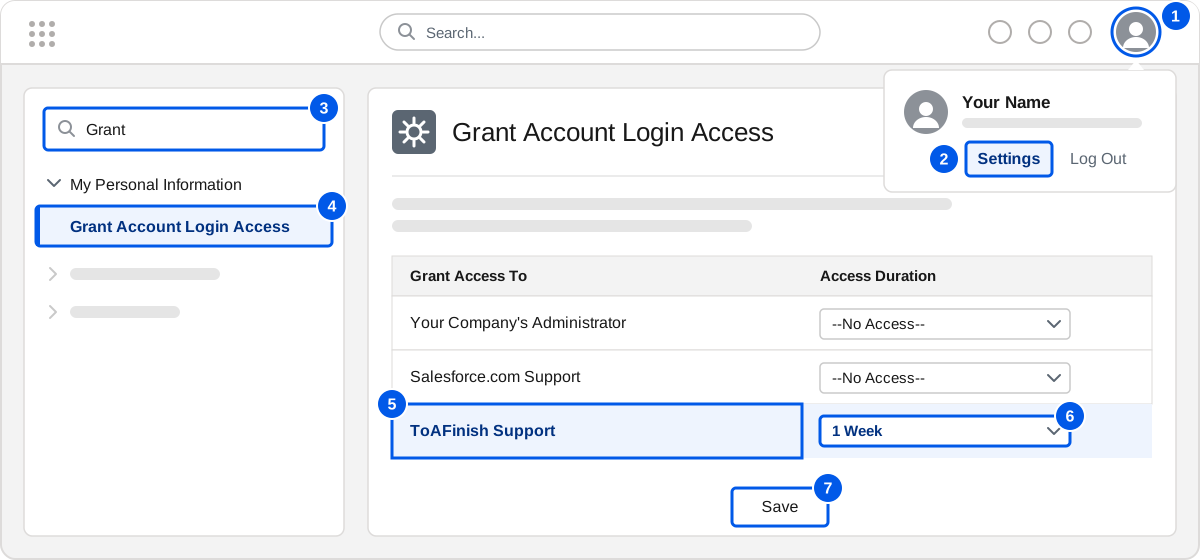
- Click your profile picture at the top right of Salesforce.
- Click Settings.
- In the Quick Find box on the left, type Grant.
- Click Grant Account Login Access. In some orgs its name is Grant Login Access.
- Find the row ToAFinish Support.
- In the Access Duration list on that row, pick a period. One week is usually enough.
- Click Save.
- Click your name at the top right of Salesforce.
- Click My Settings.
- In the left menu, click Personal.
- Click Grant Account Login Access. In some orgs its name is Grant Login Access.
- Find the row ToAFinish Support.
- In the Access Duration list on that row, pick a period. One week is usually enough.
- Click Save.
Tell us you did it
On the case form, set Can You Provide Access? to Yes, I already granted it. Already sent the case? Reply to our email and say so.
ToAFinish Support is not in the list
Salesforce hides the row in three cases:
- Your admin turned off access for users who are not admins.
- Your user has no license for our app.
- The app is licensed to your whole org. Then only an admin with the Manage Users permission can grant access.
In each case, ask your Salesforce admin to grant the access. An admin controls this list in Setup, under Login Access Policies.
End access early
- Open the same page again, the way you opened it above.
- On the row ToAFinish Support, pick --No Access--.
- Click Save.
Find your org ID
The case form also asks for your Salesforce org ID.
- Click the gear icon at the top right of Salesforce.
- Click Setup.
- In the Quick Find box, type Company Information.
- Click Company Information.
- Copy the value beside Salesforce.com Organization ID.
You cannot grant access
Say so on the case form. Paste the exact error text and tell us the steps that cause it. We work from those instead.
Support
Ready to send your case?
Open a case and tell us what you see. A person reads every case.