

Highlighter for Salesforce
Highlighter changes how a Salesforce record looks when a rule you set is true. It colors a field, or renames, hides or disables it. Users see what needs attention on each record.
Currently free Managed package
What Highlighter does
It changes how a record page looks, based on the data in that record.
Colors fields
Give a field a color when a rule is true. For example, turn the Priority field on a Case red when the priority is High.
Controls what users see
Rename or hide a field, so users see only the data that fits the record in front of them.
Uses your own rules
Build rules on standard or custom fields, with as many actions as you need. Each rule is set up on one screen.
See it work
Highlighter reads your rules and changes the page as the record changes.
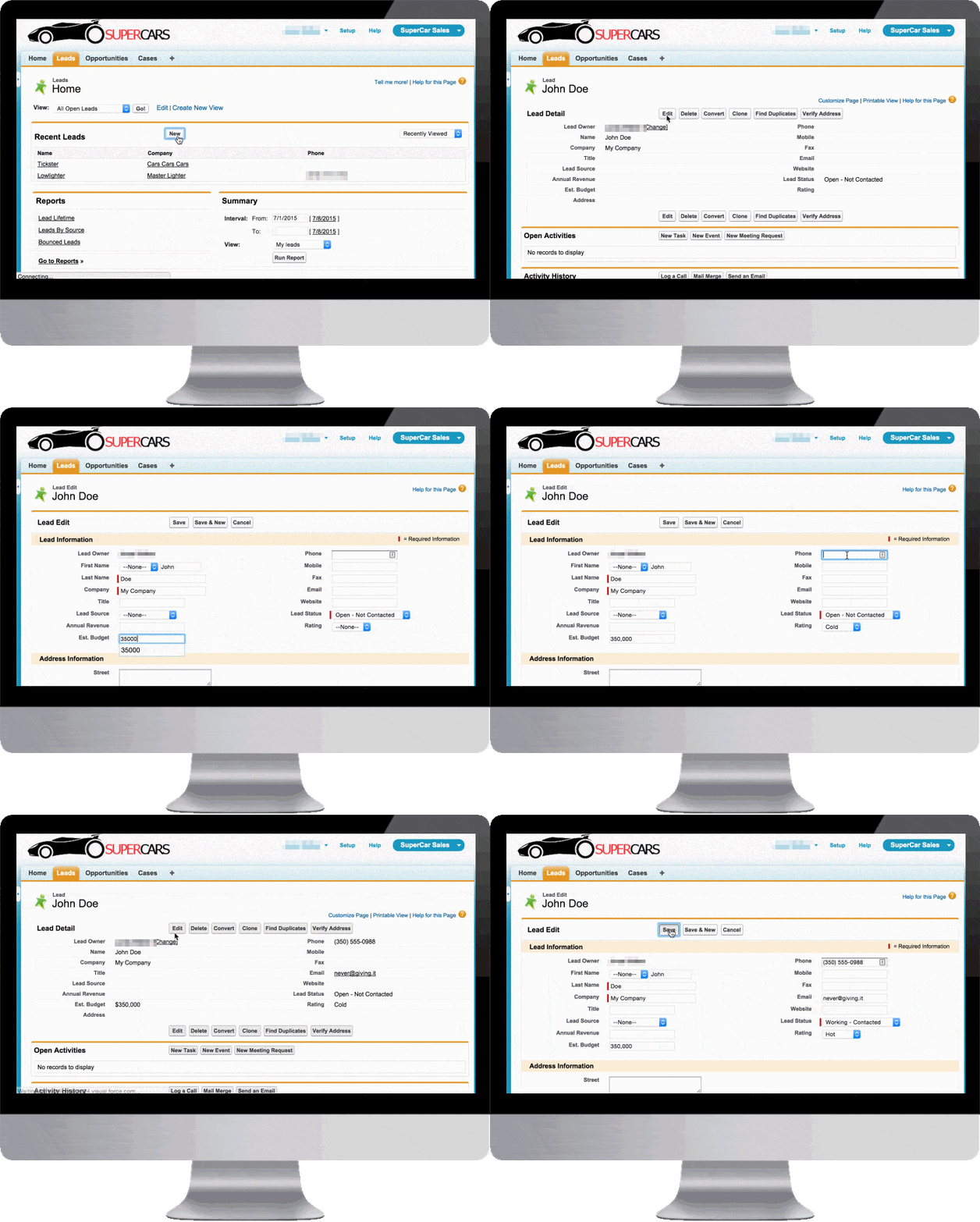
On a real record
Click a picture to open it full size.
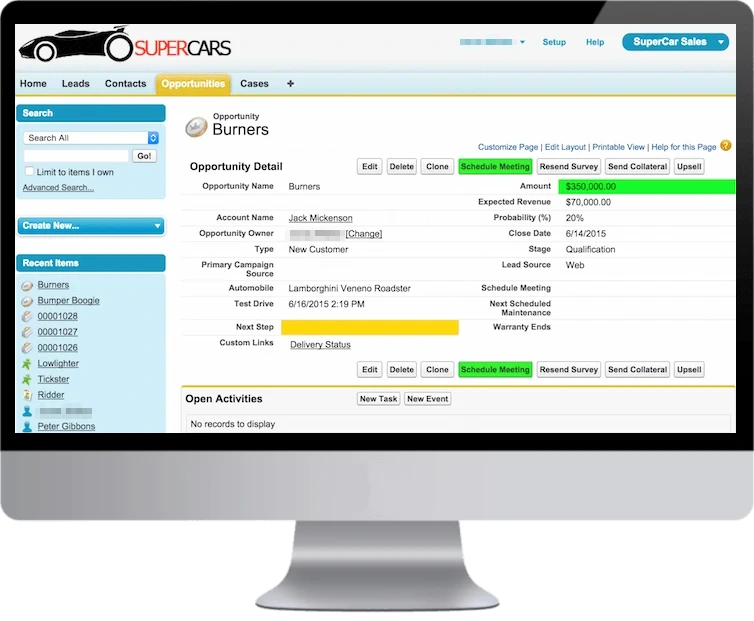
Point to what matters
On this Opportunity, the Amount and the Schedule Meeting button are green. The empty Next Step field is yellow, so the rep fills it in.
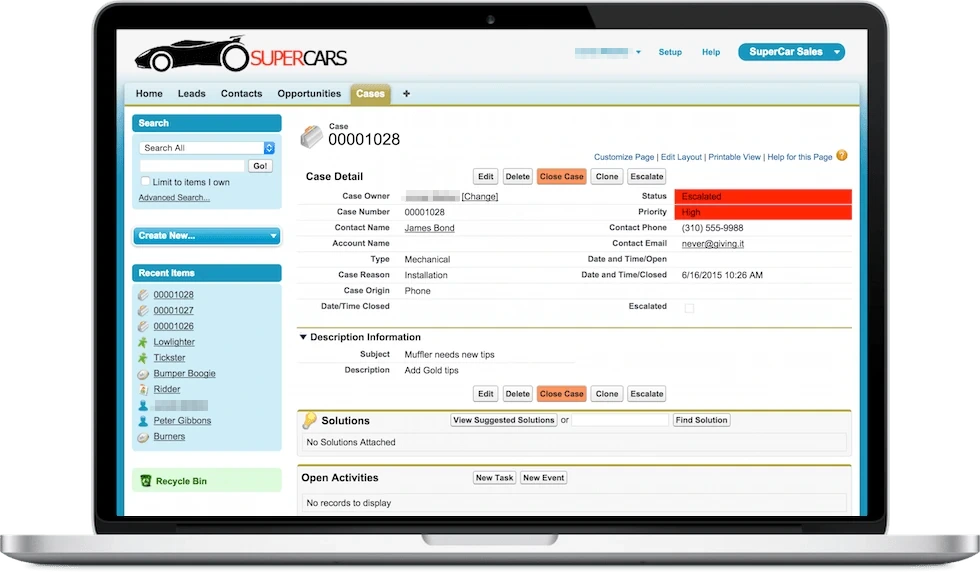
Flag urgent work
On an escalated, high-priority Case, Status and Priority are red. The Close Case button is orange.
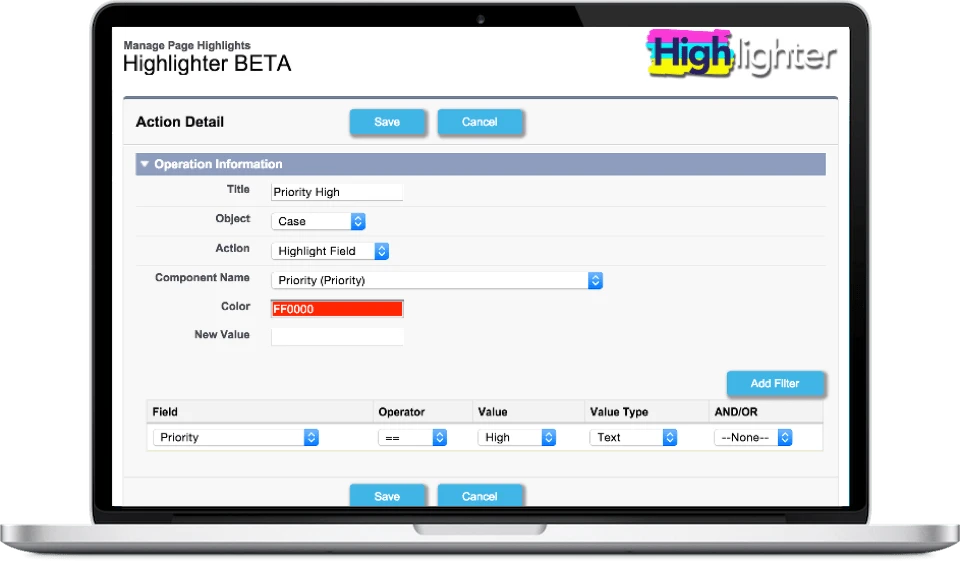
Set a rule on one screen
Pick the object, the field and the color. Add a filter, such as Priority equals High. Then save.
What admins say
Easy to use
"We've been looking for this functionality for some time... Easy to use with fast and helpful support."
Installation was a breeze
"Works well. Installation was a breeze. I recommend this app for anyone to keep in their Salesforce toolbox."
People would love this
"I think a lot of people would love this as standard functionality!!"
Highlighter FAQs
The questions admins ask most about licenses, filters and hidden fields. Click a question to open the answer.
Not all users need licenses. Only users who need to see highlights, and users who will administer the app, need one. If a user is in a role that will never need to interact with highlights, you don't have to give them a license. Licenses are currently free.
Link to this answerYou need a license for any user (usually an admin) who sets up the highlights, and also a license for each user who needs to see the highlights (or other actions).
Link to this answerWhen you edit the Stage field itself, the highlight works. When you use the Path to change the Stage and press "Mark Stage as Complete", the field does not get highlighted until the page refreshes.
This can work without a refresh. Because the field is updated outside of the detail component, we need to create a special platform event to notify our component to refresh the highlights.
Link to this answerWhen you edit the Status field itself, the highlight works. When you use the Path to change the Status and press "Mark Status as Complete", the field does not get highlighted until the page refreshes.
This can work without a refresh. Because the field is updated outside of the detail component, we need to create a special platform event to notify our component to refresh the highlights.
Link to this answerThis covers a field that is null, blank or empty. Create a filter that says the field equals a blank value. Leave Value Type and Value blank.
Link to this answerYes. You can hide these fields like any others.
- Click Setup, then Installed Packages.
- Search for Highlighter, then click Configure.
- Click New.
- In the New Action, set the Object to Opportunity, the Action to "Hide Field" and the Component Name to Stage (StageName).
- Under Only Valid For, check "All" to hide the field from all users, or pick the users it should apply to.
- Click Save, then test it.
Some fields can be highlighted but cannot be used in the filters. To highlight these fields, set up other fields to filter on, for example fields filled by a Flow. Then use those fields in the action filters.
Link to this answerWe usually don't turn on the license management feature for installs. We do not strictly monitor licensed usage except around renewal time. If your team grows by a few members, or more users want to start using the app, we let you start using it, and we adjust the licenses next year at renewal time.
We don't have a person dedicated to license management, and managing these licenses is a waste of time for our clients as well. All you have to do is assign each user the appropriate permission set.
Link to this answerThe short answer is that we do not offer support. However, if you are interested in upgrading to our paid product and are testing it in the free version, we can offer limited support to make sure your test succeeds. If you need help configuring, paid support is available by the hour.
Link to this answerThe first reason to check is whether the user is assigned one of our permission sets. Assign the "Admin" permission set to anyone who administers the app, and the "User" permission set to everyone else.
Link to this answerThey are named licenses, not concurrent licenses. As an admin, you can change the user assigned to a license.
Link to this answerWe cannot downgrade to a lower version. We treat sandboxes differently from production. We frequently update clients' sandboxes with new versions, so they can test their existing functionality in the new version. We release new versions almost weekly, so the upgrade was most likely pushed to your sandbox automatically.
Some clients opt out of automatic updates through a do-not-update exclusion list. To join the list, send us the org IDs of the sandboxes you want excluded, and we will make sure they are not updated in the future.
Link to this answerDid not find your answer? Open a case and a person reads it. See what changed in each version in the Highlighter change log.
Talk to us about Highlighter
Email our sales team. For a problem with the app, open a case.
No live demos for Highlighter
Highlighter is now free, so we are not running live demos. You can watch the demo on the AppExchange listing.