

List Browse for Salesforce
List Browse lets users move from one Salesforce record to the next without going back to the list. Open a list, then browse its records one page after another.
Currently free Managed package Lightning or Classic

What List Browse does
It turns a list of records into pages you can step through, so users stop clicking back to the list.
Moves record to record
Open a list, then go from each record page straight to the next one. No trip back to the list in between.
Works on every object
Use it with any object in your org, in Lightning or in Classic. Users need no training.
Saves lists to share
Save a list for yourself, for your sales team, or for the whole company.
See it work
Browse a list the way you page through a magazine.
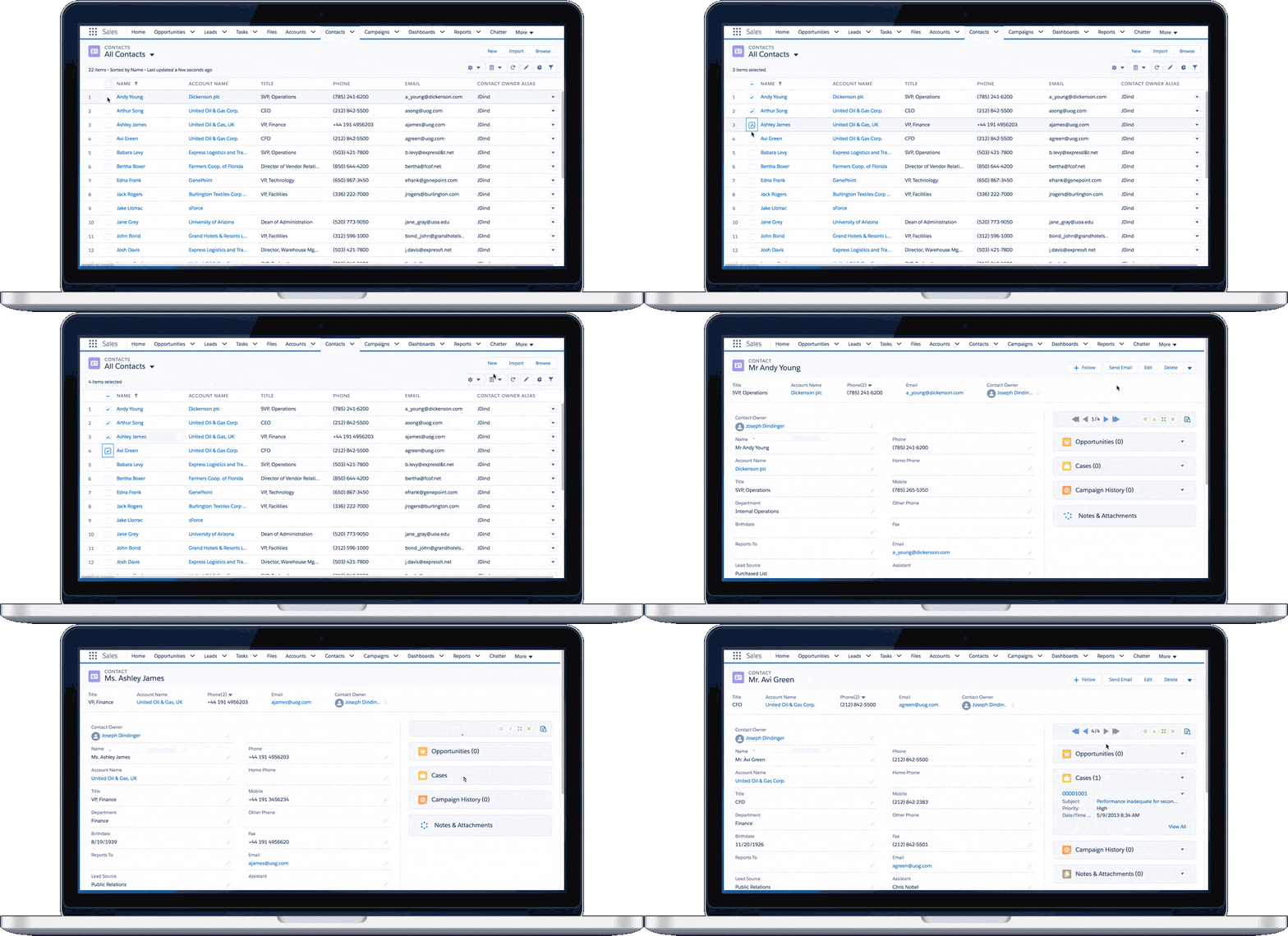
On a real record
Click a picture to open it full size.
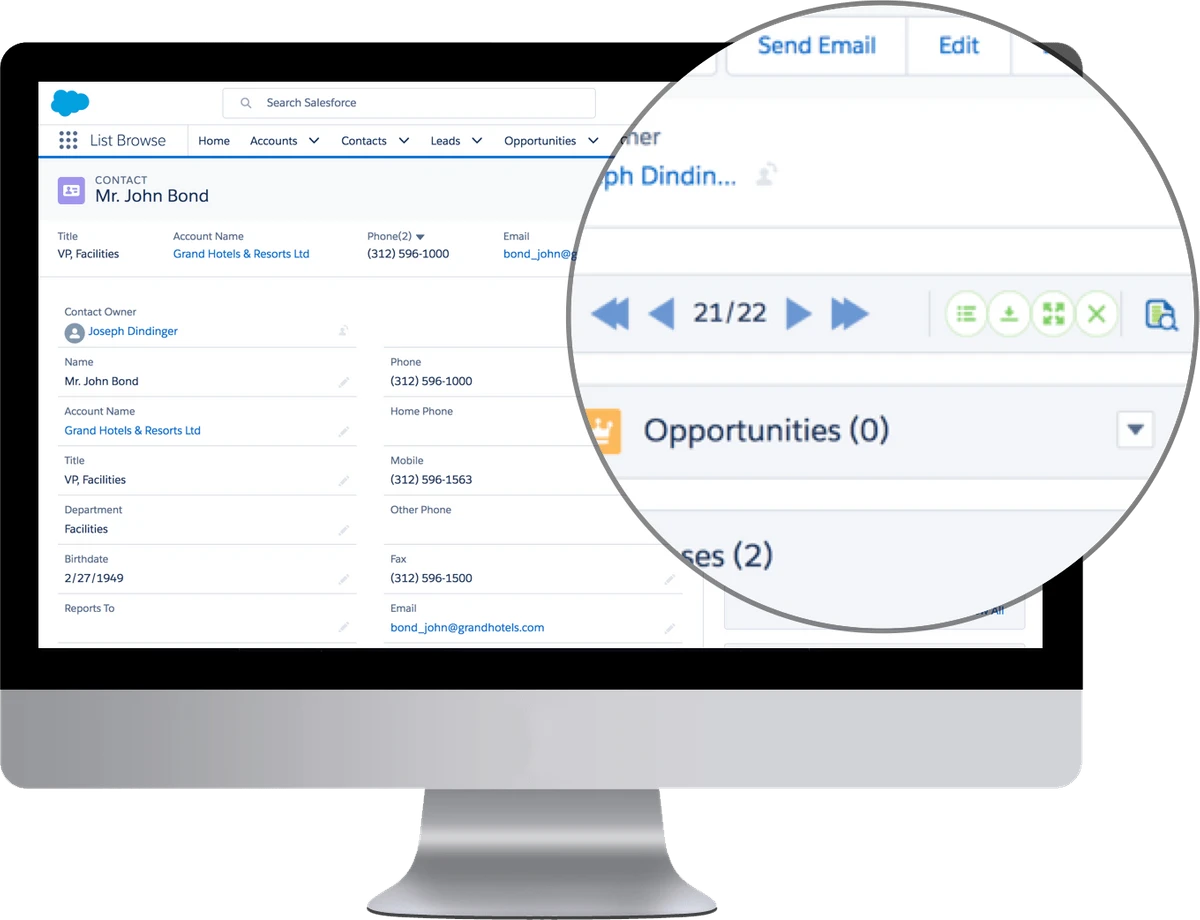
A bar on every record
In Lightning, List Browse adds a bar to the record page. Here it shows record 21 of 22. The arrows go to the first, previous, next or last record.
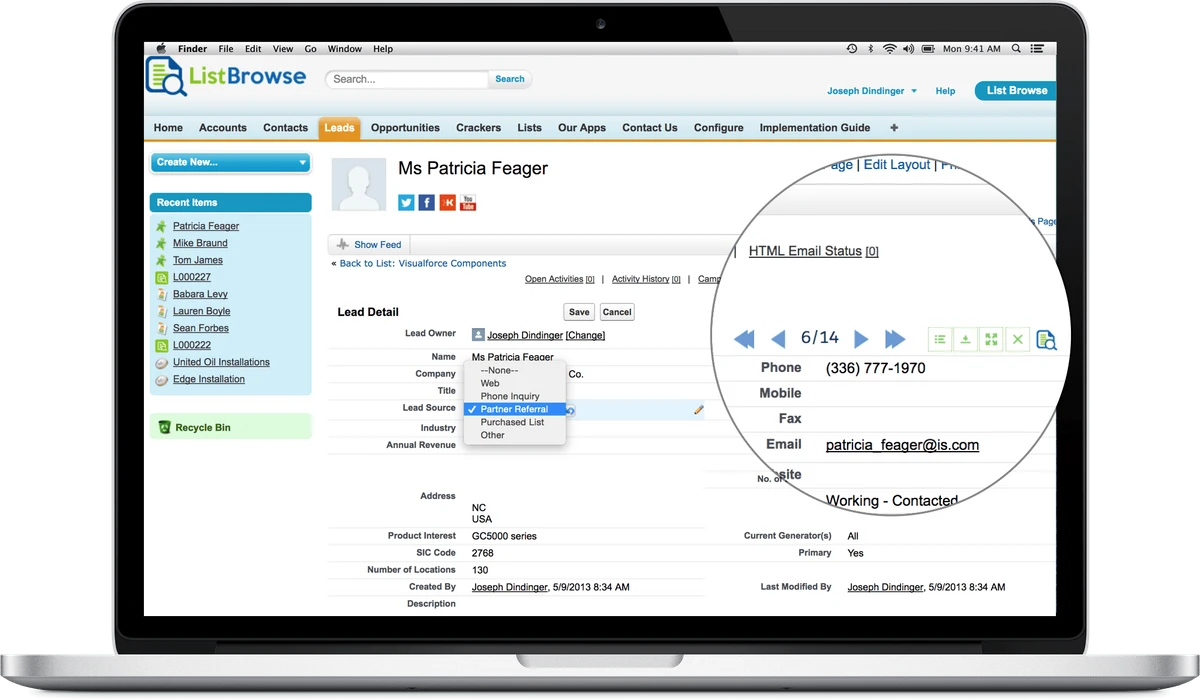
The same bar in Classic
The bar works in Salesforce Classic too. Here it shows record 6 of 14 on a Lead.
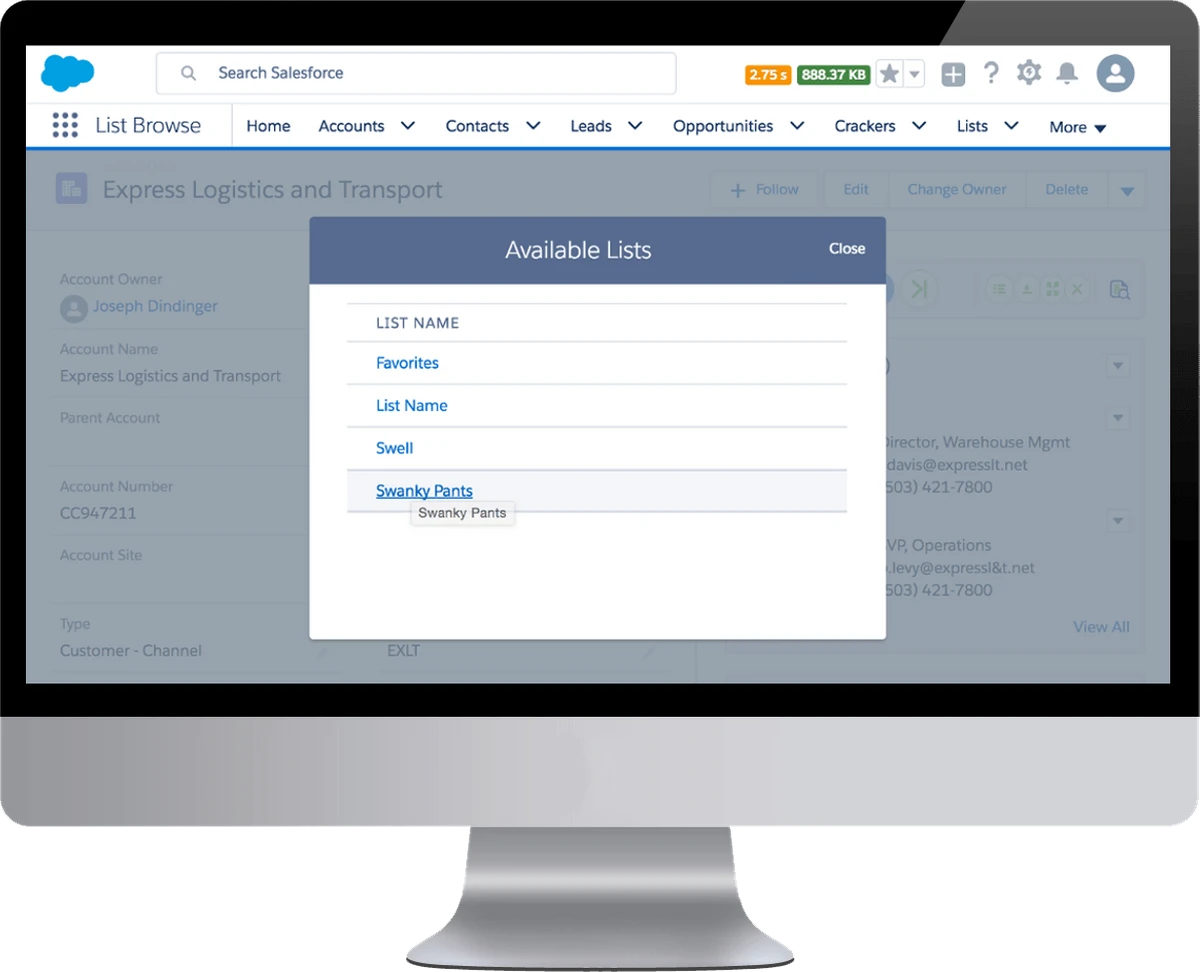
Pick a saved list
The Available Lists window shows the lists you saved. Pick one to browse its records.
What admins say
Great addition to Salesforce
"This app should be standard functionality in Salesforce. It is frustrating not to be able to browse between record pages as most other database systems let you do. List Browse solves that problem. Good to see other apps like ActionGrid making use of ListBrowse's functionality too."
Helps us focus on the important issues
"This app automatically browses between Salesforce pages, hence increasing the speed of accessing the data. It helps us focus on the important issues, hence prioritizing the task which needs to be completed first."
Allows sales reps to focus and filter
"We have been using ListBrowse for quite some time now. It allows our sales reps to focus and filter on specific accounts or activities that are a crucial part of their day. In turn, completing more tasks and closing more deals."
List Browse FAQs
The questions admins ask most about licenses, access and sandbox versions. Click a question to open the answer.
We usually don't turn on the license management feature for installs. We do not strictly monitor licensed usage except around renewal time. If your team grows by a few members, or more users want to start using the app, we let you start using it, and we adjust the licenses next year at renewal time.
We don't have a person dedicated to license management, and managing these licenses is a waste of time for our clients as well. All you have to do is assign each user the appropriate permission set.
Link to this answerThe short answer is that we do not offer support. However, if you are interested in upgrading to our paid product and are testing it in the free version, we can offer limited support to make sure your test succeeds.
Link to this answerThe first reason to check is whether the user is assigned one of our permission sets. Assign the "Admin" permission set to anyone who administers the app, and the "User" permission set to everyone else.
Link to this answerThey are named licenses, not concurrent licenses. As an admin, you can change the user assigned to a license.
Link to this answerWe cannot downgrade to a lower version. We treat sandboxes differently from production. We frequently update clients' sandboxes with new versions, so they can test their existing functionality in the new version.
Some clients opt out of automatic updates through a do-not-update exclusion list. To join the list, send us the org IDs of the sandboxes you want excluded, and we will make sure they are not updated in the future.
Link to this answerDid not find your answer? Open a case and a person reads it. See what changed in each version in the List Browse change log.
Talk to us about List Browse
Email our sales team. For a problem with the app, open a case.
No live demos for List Browse
List Browse is now free, so we are not running live demos. You can watch the demo on the AppExchange listing.