

Add the Browse button
How to do it in List Browse, one step at a time.
Last updated 8 Oct 2026
Each object needs the Browse button on its list views. This chapter uses Account. Do it again for each object you want to browse.
Open the object in Object Manager.
Open Setup. Click Object Manager. Click Account.
Click List View Button Layout.
The page shows one row, named List View.
On the List View row, open the menu at the right. Click Edit.
The edit page opens. Standard Buttons sit at the top. Custom Buttons sit below them.
Under Custom Buttons, move Browse into Selected Buttons.
Click Browse in Available Buttons. Click the Add arrow. Pick Browse, not Browse (Legacy). Browse (Legacy) is the older button.
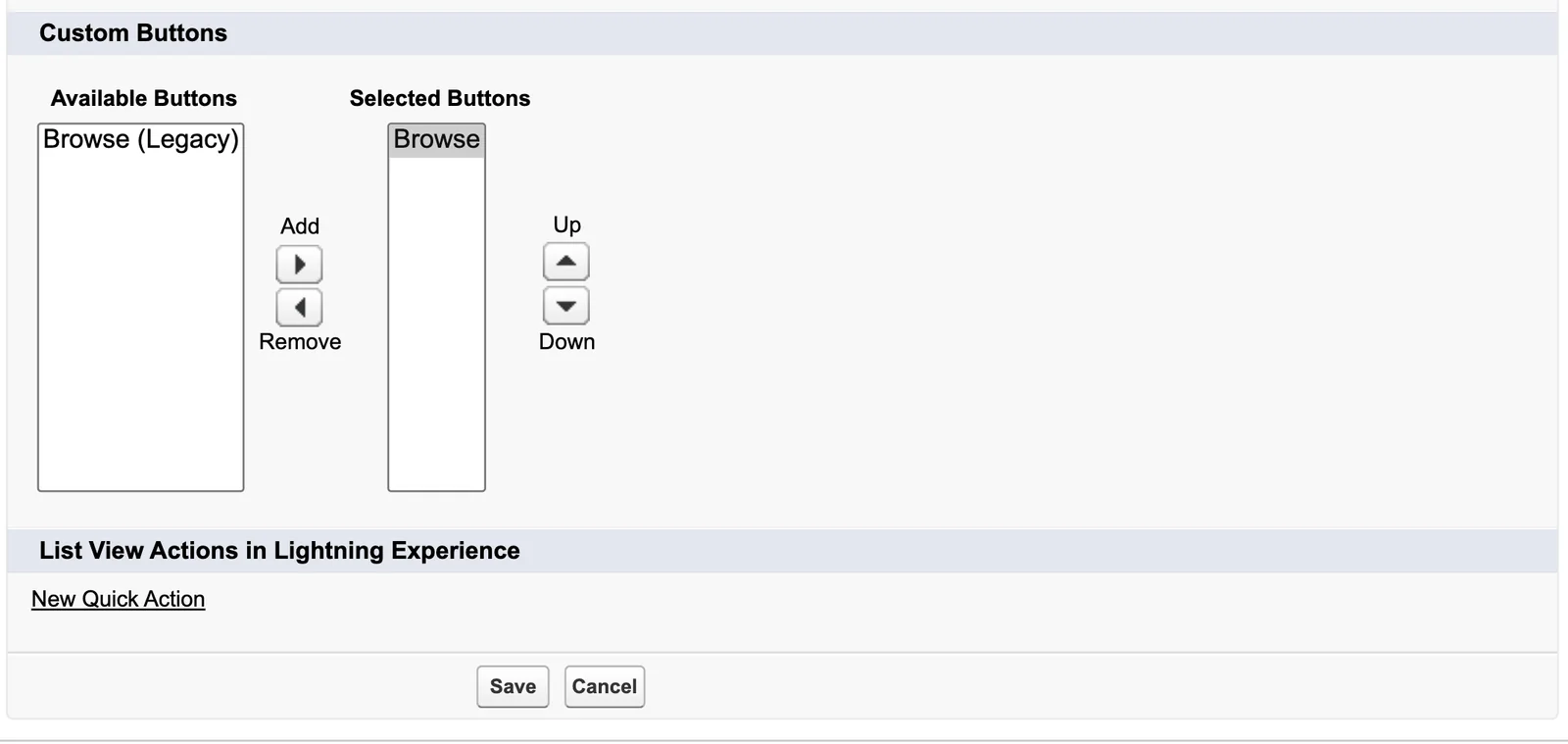
Click Save.
Salesforce goes back to List View Button Layout.
Applies to
List Browse 3.0.x. These steps come from the tested List Browse implementation guide, where they sit with the steps before and after them.
Was this helpful?
Thank you. It helps us know which articles work.
Related
Still stuck?
Open a case and paste the exact error text. A person reads every case.