

Set the options
How to do it in List Browse, one step at a time.
Last updated 8 Oct 2026
The List Browse Configure page holds three options and a box about remote sites.
Open the List Browse Configure page.
Open Setup. In the Quick Find box, type Installed Packages. Click Configure beside List Browse. The List Browse Setup page opens, with the Functionality Switches. It can also show a blue box about remote sites.
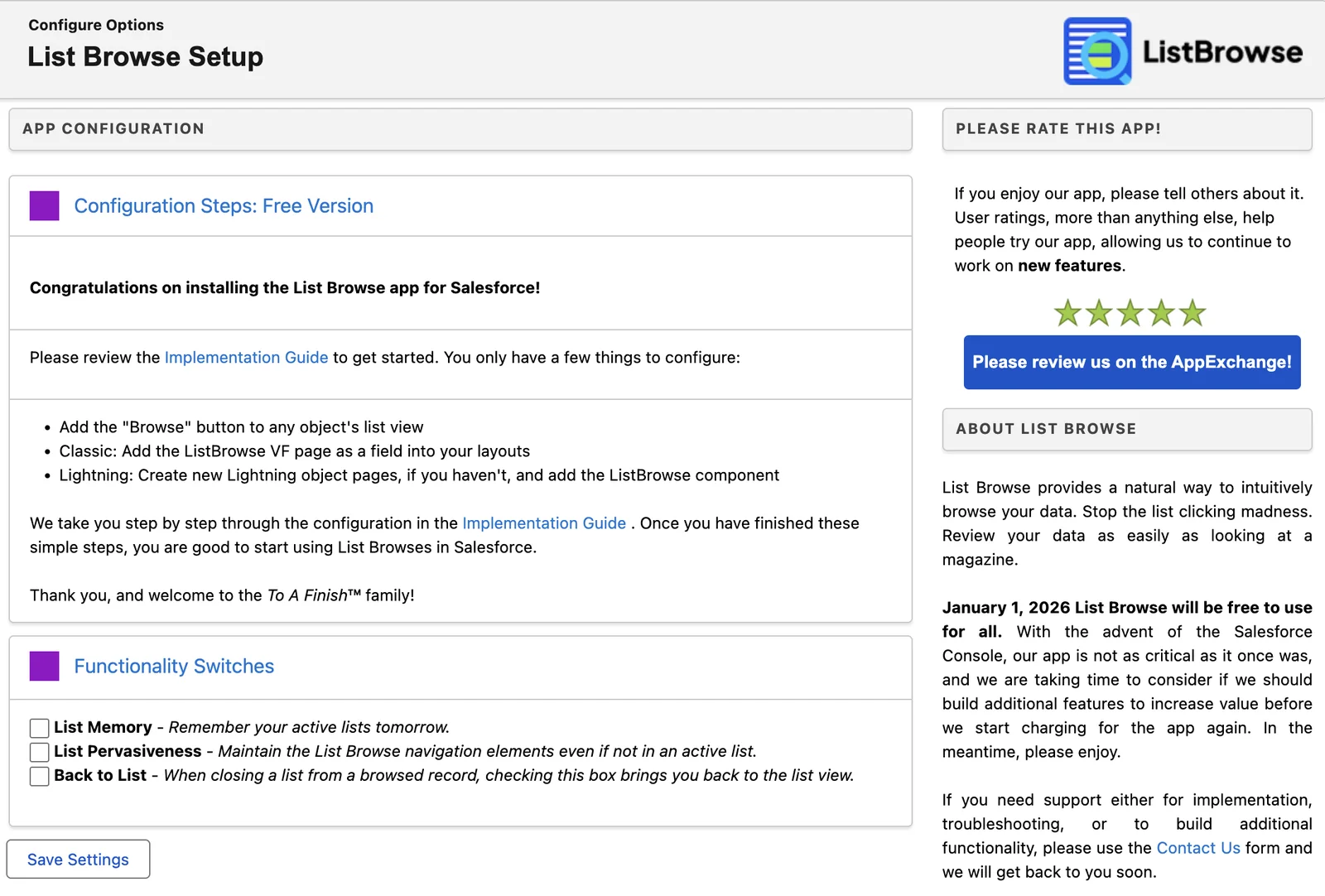
Tick the options you want.
Option What it does List Memory Keeps each user's active browse lists from day to day. Without it, users may start over each day. List Pervasiveness Keeps the List Browse bar on the record page, even when the record is not in a browse list. Without it, the bar goes away after a click on the X, until the user clicks Browse again. Back to List Sends the user back to the list view after a click on the X. Without it, the X clears the list and leaves the user on the current record. Click Save Settings.
The page shows no message after the save. Your choices apply to every user in the org.
Add the remote sites
A remote site is a web address that Salesforce lets an app call. The blue box lists two addresses, and both are addresses of your own org. List Browse uses them to read how a list view is sorted. Without them, every browse list sorts by Name, whatever order the list view shows.
- The first address is for the Browse buttons that come with List Browse.
- The second address is for Browse buttons you make yourself. See Browse other objects.
No blue box?
Then the remote sites are already in place. Skip the steps below.
TAF cannot reach your org through this setting
The remote sites only let your org read its own list views through List Browse.
Copy the first address in the blue box.
Copy from
https://to the end of the address.Open Remote Site Settings. Click New Remote Site.
Open Setup. In the Quick Find box, type Remote Site Settings. Click Remote Site Settings. Click New Remote Site. The Remote Site Edit page opens.
Type a name in Remote Site Name.
Use letters and numbers only, for example
ListBrowse1.Paste the address into Remote Site URL.
Make sure Active is ticked. Then click Save.
Salesforce shows the new remote site.
Add the second address the same way.
Do steps 1 to 5 again with the second address. Use another name, for example
ListBrowse2.Open the Configure page again.
Use step 1 above. The blue box is gone.
Applies to
List Browse 3.0.x. These steps come from the tested List Browse implementation guide, where they sit with the steps before and after them.
Was this helpful?
Thank you. It helps us know which articles work.
Related
Still stuck?
Open a case and paste the exact error text. A person reads every case.