

Create an action
How to do it in Highlighter, one step at a time.
Last updated 8 Oct 2026
An action is one rule. It names an object, a field, and what Highlighter does to that field. Highlighter has three field actions.
| Action | What it does |
|---|---|
| Highlight Field | Colors the background of the field. |
| Rename Field Label | Changes the field name that users see. |
| Hide Field | Removes the field from the page. A blank space stays where it was. |
On the Highlighter setup page, click New.
The New Action window opens, with the lists Object, Action, Component Name, New Value and Only Valid For.
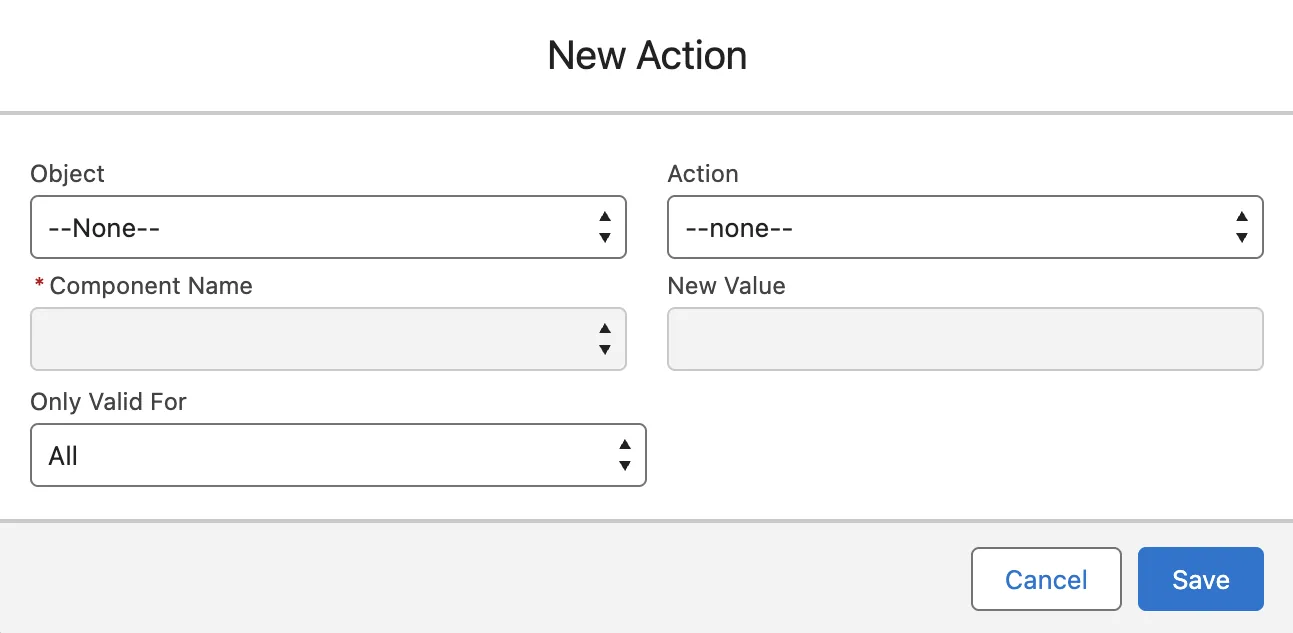
In Object, pick the object.
For example, Opportunity. A few standard objects do not work with Highlighter, such as Quote.
In Action, pick Highlight Field, Rename Field Label or Hide Field.
The list also holds four button actions. They do not work in Lightning.
In Component Name, pick the field.
The list shows every field on the object.
For Highlight Field, set the background color.
Pick one of two ways.
- Color. Click the color box. Pick a color in the picker, or type a hex color code such as
#3AB3AC. Then click Done. - Background Formula. Pick a formula field that returns a color code. The color then follows the data in each record. TAF recommends this over several actions on one field.
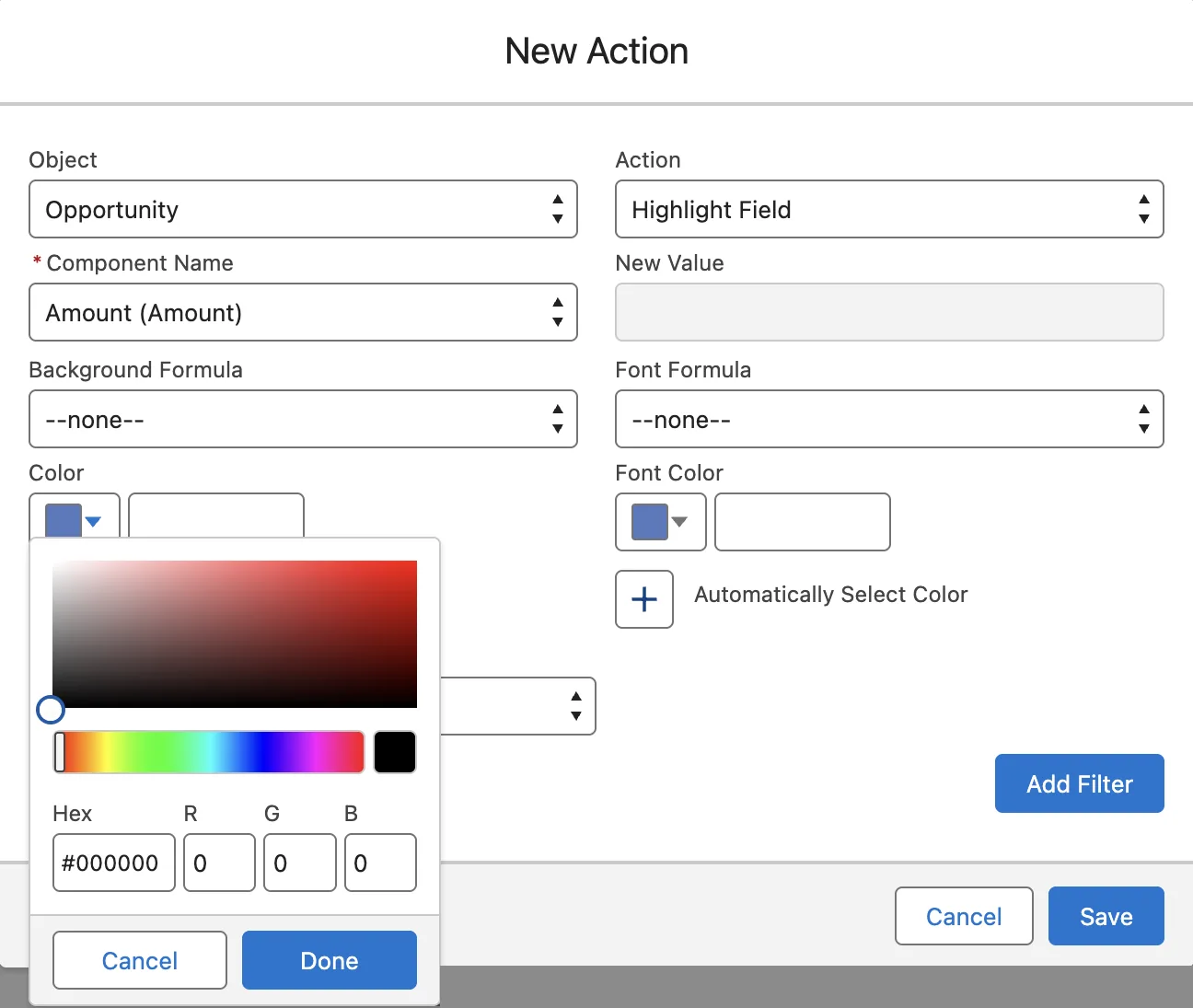
- Color. Click the color box. Pick a color in the picker, or type a hex color code such as
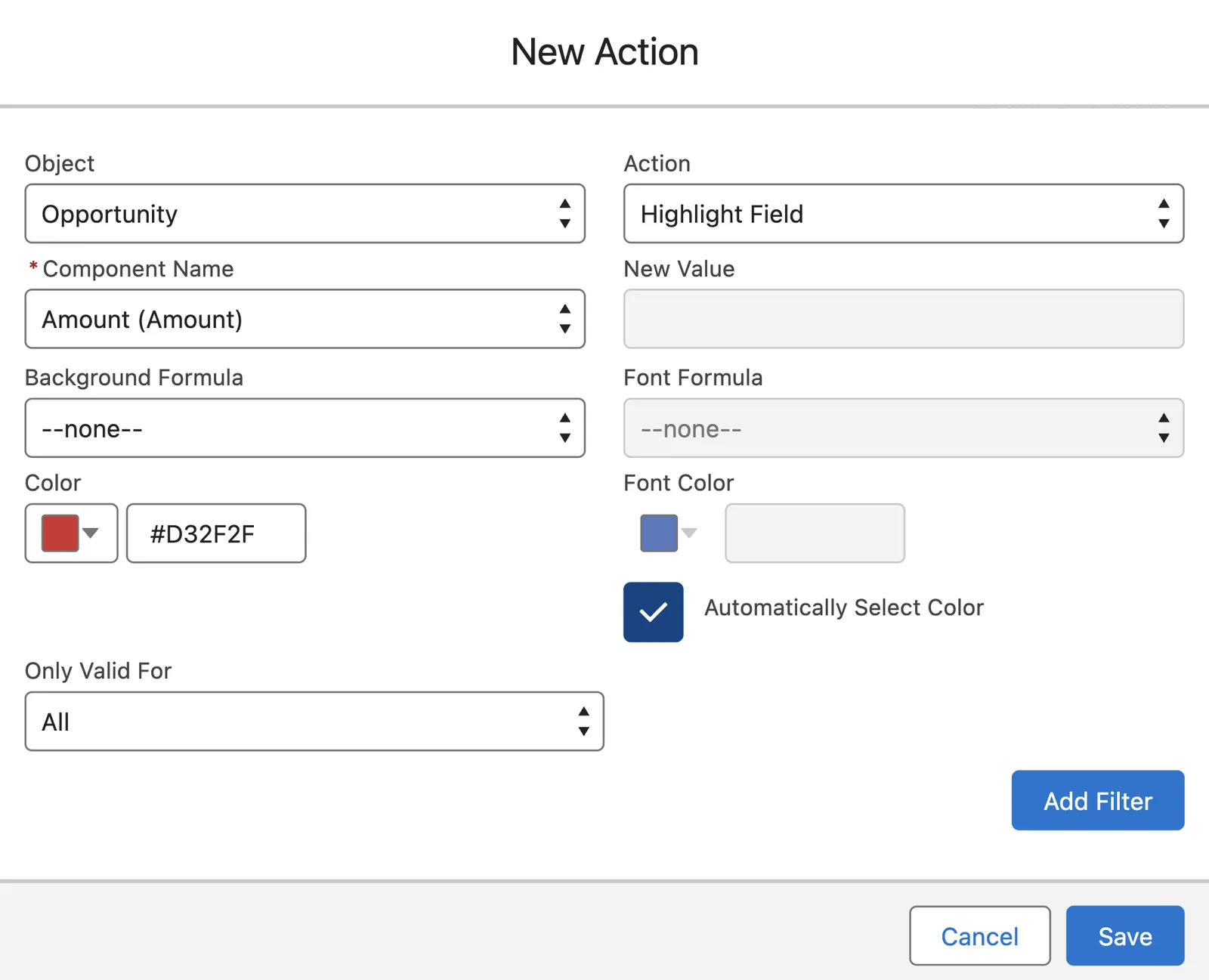
Tick Automatically Select Color for the font.
Highlighter then picks white or black text to suit the background, so the field stays easy to read. You can also set a fixed Font Color the same way as the background.
For Rename Field Label, type the new label in New Value.
Click Save, if the action applies everywhere.
The window closes, and the new action shows in the Action List. It now runs on every record, for every user. To limit it to some users or some records, do not save yet. Go to Limit an action.
If the action has no filter, a box warns that the field is always highlighted. That is expected. Click Ignore And Save. The action saves.
Applies to
Highlighter 3.0.x. These steps come from the tested Highlighter implementation guide, where they sit with the steps before and after them.
Was this helpful?
Thank you. It helps us know which articles work.
Related
Still stuck?
Open a case and paste the exact error text. A person reads every case.