

Add the remote site
How to do it in Highlighter, one step at a time.
Last updated 8 Oct 2026
The first time the setup page opens, it shows a red error that asks for a remote site. A remote site is a web address that Salesforce lets an app call. Here it is the address of your own org. Highlighter uses it to read the list of fields in your org.

TAF cannot reach your org through this setting
The remote site only lets your org read its own field list through Highlighter.
Copy the address in the error.
The error starts with
IO Exception: Unauthorized endpoint. It ends withAdd this endpoint =and an address. Copy that address, fromhttps://to the end.Open Remote Site Settings.
Open Setup. In the Quick Find box, type Remote Site Settings. Click Remote Site Settings. The All Remote Sites list opens.
Click New Remote Site.
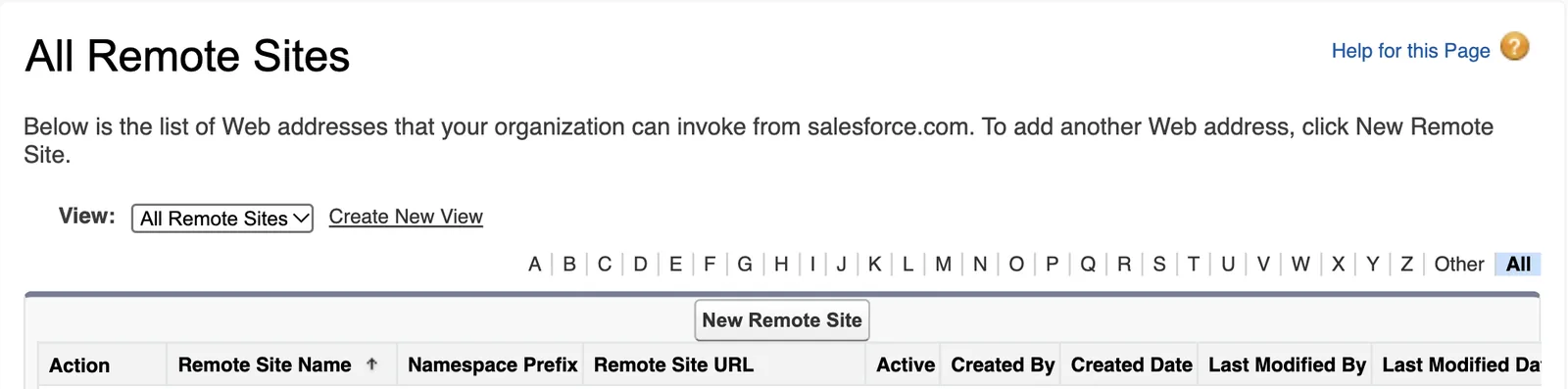
The Remote Site Edit page opens.
Type a name in Remote Site Name.
Use letters only, for example
Highlighter.Paste the address from step 1 into Remote Site URL.
Make sure Active is ticked. Then click Save.
Salesforce shows the new remote site.
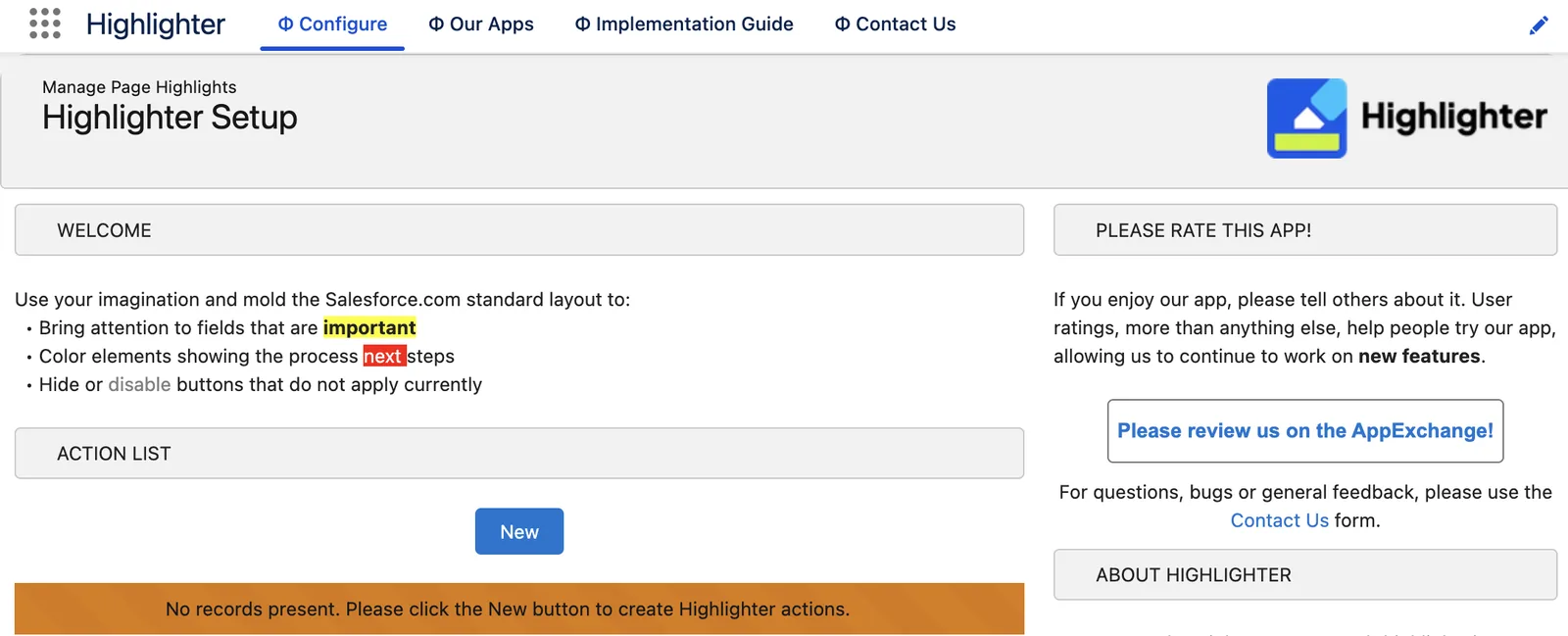
Open the Highlighter setup page again.
Use step 8 of the install. The red error is gone. If the page shows an Activate Highlighter button, click it. The page then shows a Welcome box, an empty Action List and a New button.
Applies to
Highlighter 3.0.x. These steps come from the tested Highlighter implementation guide, where they sit with the steps before and after them.
Was this helpful?
Thank you. It helps us know which articles work.
Related
Still stuck?
Open a case and paste the exact error text. A person reads every case.