

Choose the fields on the form
How to do it in Simple Signature, one step at a time.
Last updated 9 Oct 2026
The fields on the form come from a field set named SignatureFields on the Signature object. A field set is a named group of fields that you edit in Setup.
Open the Signature object in Object Manager.
Open Setup. Click Object Manager. Click ß Signature, the object with the API name
signature__Signature__c. Salesforce has other objects with similar names, such as Digital Signature. Leave those alone.Optional: make a new field for the form.
Click Fields & Relationships. Click New, and make the field as usual. On the field-level security page, make the field visible to the profiles of the users who take signatures. Skip this step if the fields you need are already there.
Click Field Sets. Then click SignatureFields.
The field set editor opens. The fields of the Signature object sit at the top. The fields on the form sit in In the Field Set. At first it holds First Name, Last Name, Email and Date.
Drag fields in, out and into order.
Drag a field from the top into In the Field Set to add it to the form. Drag a field back out to remove it. The order in the field set is the order on the form.
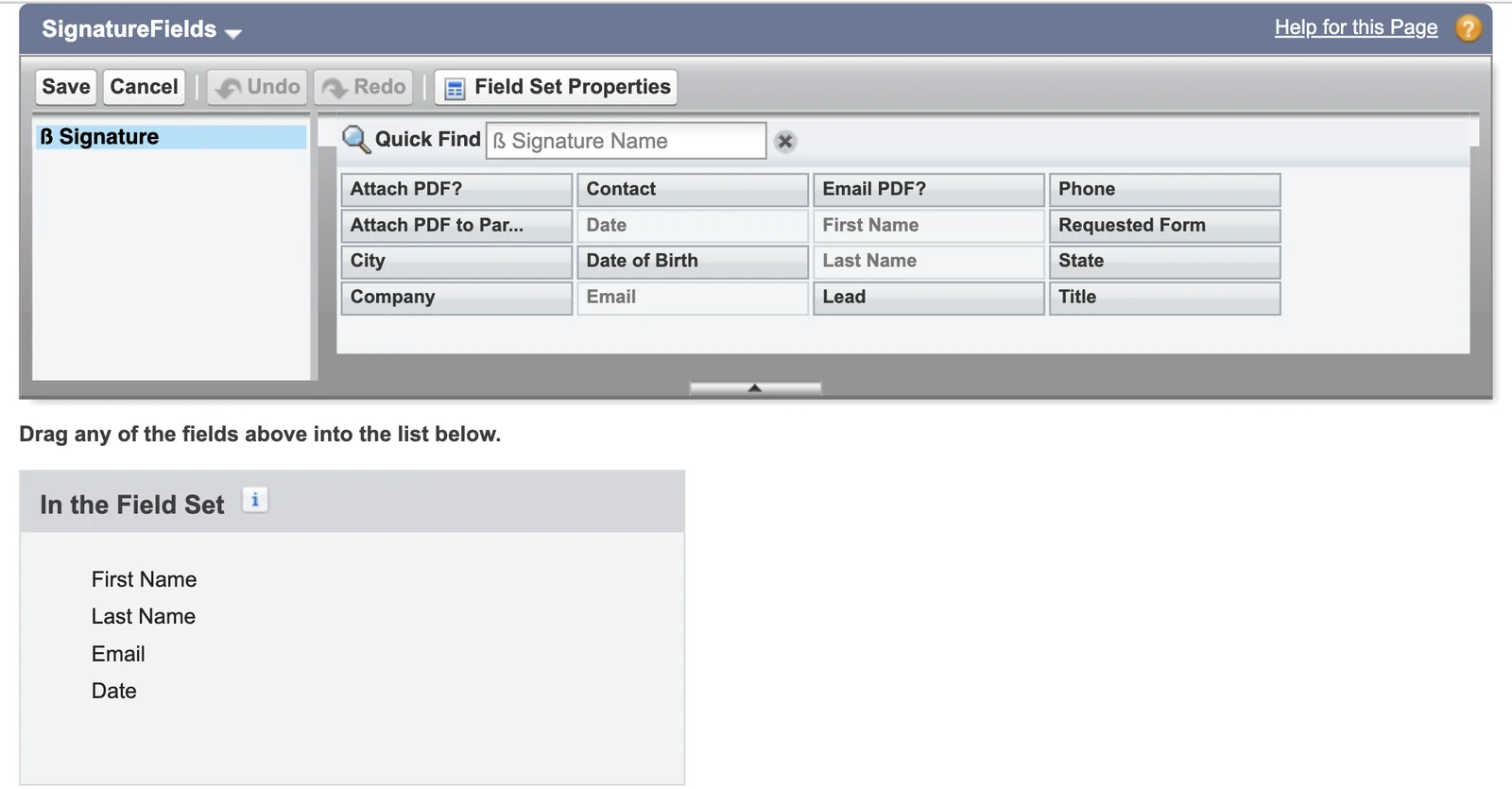
Click Save.
One field set in the free version
The free version always uses SignatureFields. More field sets, for more than one form, need the paid version.
Applies to
Simple Signature 5.8.x. These steps come from the tested Simple Signature implementation guide, where they sit with the steps before and after them.
Was this helpful?
Thank you. It helps us know which articles work.
Related
Still stuck?
Open a case and paste the exact error text. A person reads every case.