

Send reminders and clean up old requests
How to do it in Simple Signature, one step at a time.
Last updated 9 Oct 2026
Paid version only. These steps do not count in the setup progress.
Maintenance rules act on old signature requests on a schedule. One scheduled job runs all the rules each time.
| Type | What it does |
|---|---|
| Re-request | Sends the request again, the same as a new request. Any progress is lost, for example a click on the Sign Online button. |
| Notification | Sends a reminder. The Status does not change. |
| Deletion | Deletes the Signature records. Use it for old requests that nobody signed, or for signed requests you no longer need. |
| Clean Up | Deletes the records that a Signature no longer needs: process records, preview PDFs in Files, and private values such as a password. |
Check every rule before you schedule the job
The job can email many signers at once, or delete records that you cannot get back. TAF advises that its support team checks your rules the first time. Open a case.
Open the Configure page. Click the Maintenance tab.
Open it the same way as in step 2 of Turn on the paid version.
Click New Maintenance Rule. Fill in the rule as below.
Field Value Name A name that says what the rule does, for example Reminder after 3 days.Type Deletion, Clean Up, Re-request or Notification. See the table above. Status The rule acts only on Signatures with this Status: Requested, Emailed, Viewed, Clicked, Approved or Signed. For more than one Status, make one rule for each. Deletion and Clean Up mostly use Signed. The other types use earlier statuses. Days The rule acts on a Signature that stays in that Status for more than this number of days. For example, with Status Emailed and 3 Days, the rule acts on day 4 on each request that nobody viewed, clicked or signed. With 0, it acts from the next day. Request Form Optional. Pick a value of Requested Form from the list. The rule then acts only on those Signatures. Use it when you have more than one request process. Email Template Only Re-request and Notification use it. Pick the email template to send. The list holds every email template in the org. Leave it empty to send the standard request email. CC Record Owner Only Re-request and Notification use it. Copies the owner of the Signature, mostly the user who made the request. CC Record Owner's Role Hierarchy Only Re-request and Notification use it. Also copies the managers above the owner, maybe several levels up. Use it with care. BCC Record Owner's Email to Salesforce Only Re-request and Notification use it. Logs the email on the record. The owner must first set up My Email to Salesforce, under My Settings, then Email. Under Type, the window shows a Maintenance Rule Description. It fills in by itself, for example Includes all Signatures in emailed Status more than 3 days since Emailed. Read it to check the rule.
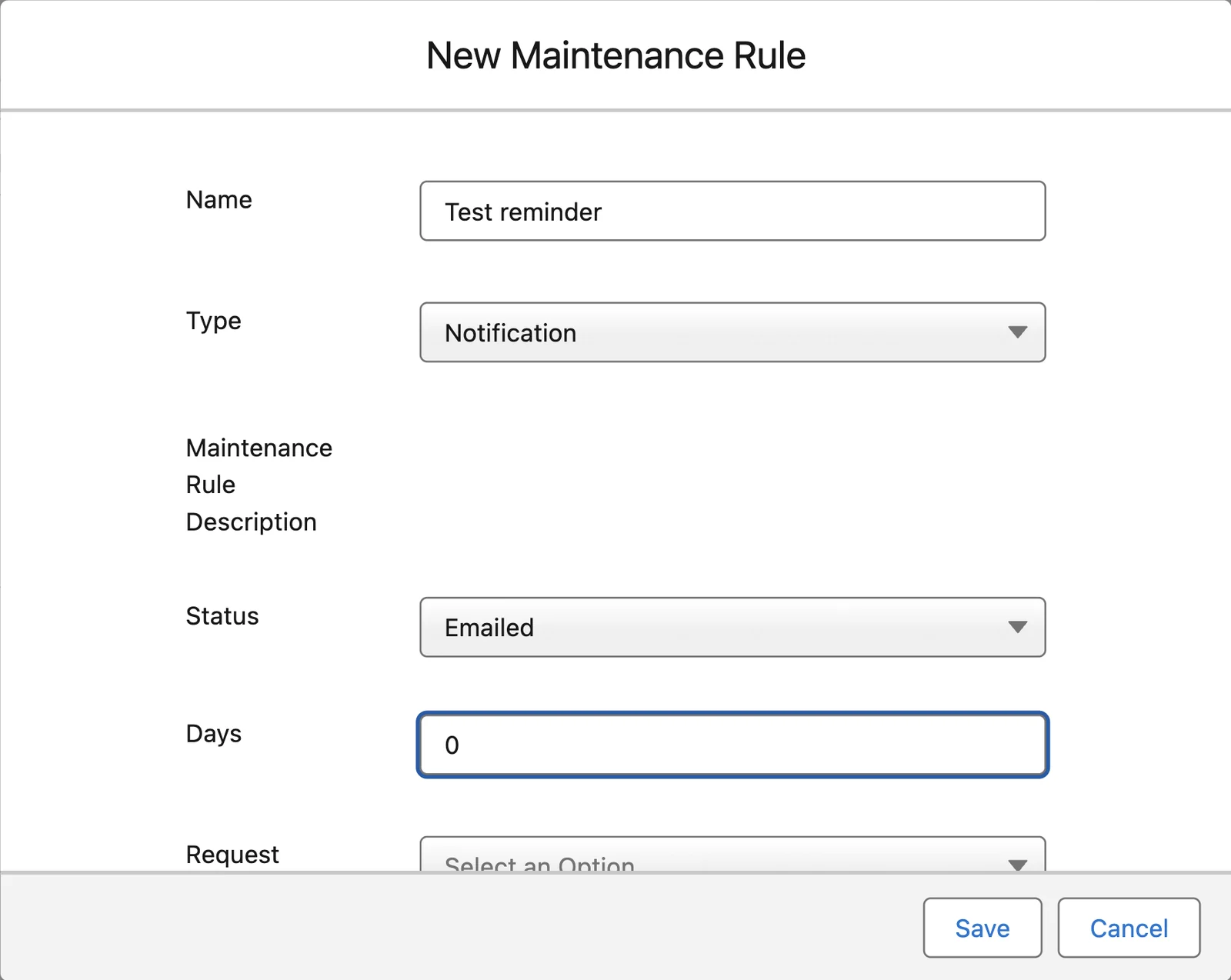
Click Save. Make the other rules you need.
The window closes with no message. The Maintenance tab lists each rule with its Name, Days, Type and Status, and the links Edit and Delete.
Open Apex Classes. Click Schedule Apex.
Open Setup. In the Quick Find box, type Apex Classes. Click Apex Classes. Click Schedule Apex.
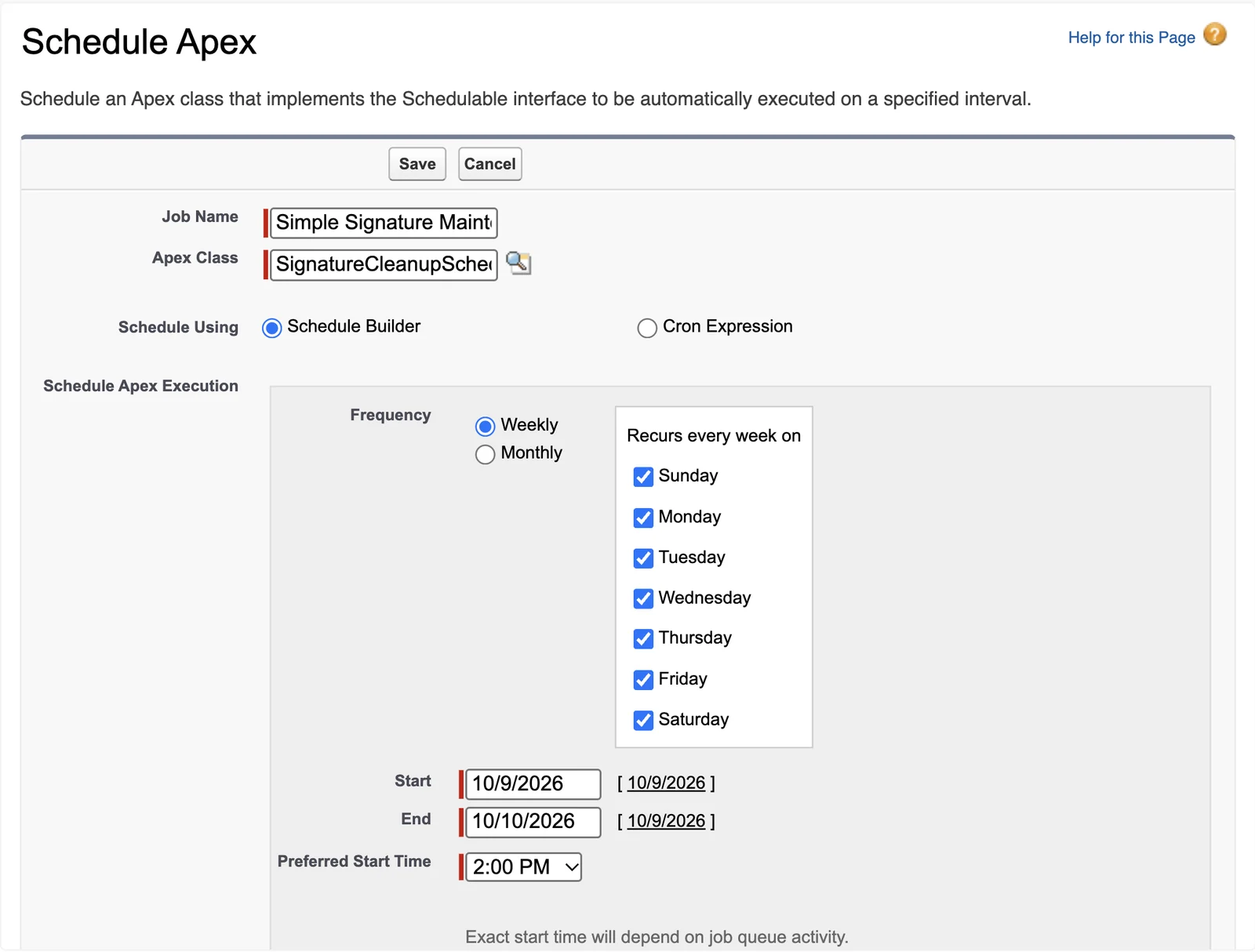
Fill in the job. Click Save.
Type a Job Name, for example
Simple Signature Maintenance. In Apex Class, typeSignatureCleanupScheduler, or pick it with the lookup icon.To run the job every day, leave Weekly on and tick every day. End starts one month ahead. The job stops after that date, so set it far ahead. Pick Preferred Start Time with the mouse. The Enter key in that list saves the form.
Check the job.
Open Setup. In the Quick Find box, type Scheduled Jobs. The list shows your job and its next run.
Applies to
Simple Signature 5.8.x, paid version. These steps come from the tested Simple Signature implementation guide, where they sit with the steps before and after them.
Was this helpful?
Thank you. It helps us know which articles work.
Related
Still stuck?
Open a case and paste the exact error text. A person reads every case.