

Add the Sign button
How to do it in Simple Signature, one step at a time.
Last updated 9 Oct 2026
The Sign button opens the form on a record. That record becomes the parent of the signature. This chapter uses Contact. Lead and Opportunity work the same way.
Another object as the parent
The Signature object comes with lookup fields to Contact, Lead and Opportunity. For another object, make a lookup field to it on the Signature object first, under Fields & Relationships. Make only one lookup to each object.
Open Contact in Object Manager. Click Buttons, Links, and Actions.
Open Setup. Click Object Manager. Click Contact. Click Buttons, Links, and Actions.
Click New Action.
The New Action page opens.
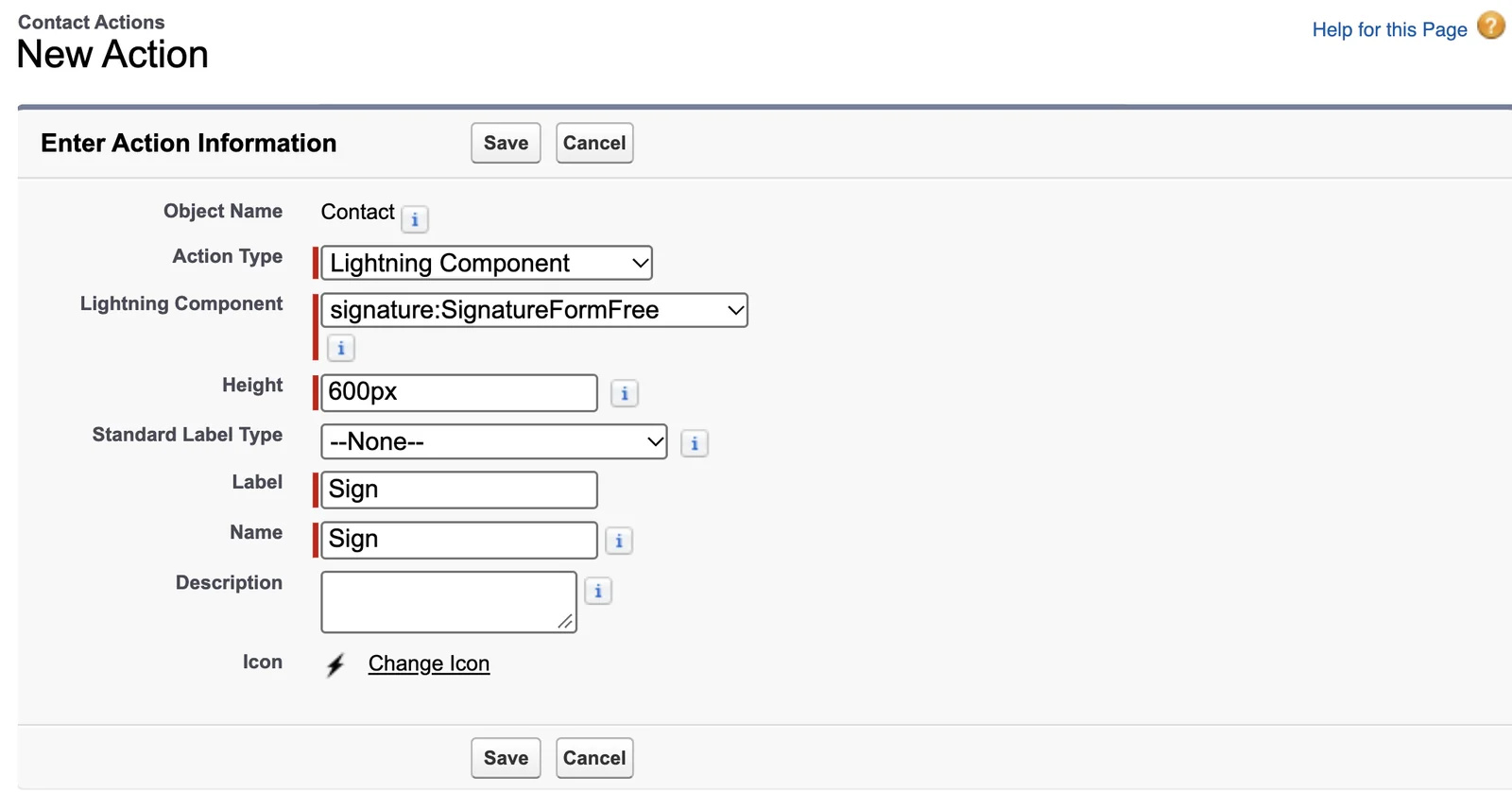
Fill in the action as below. Then click Save.
Field Value Action Type Pick Lightning Component. Lightning Component Pick signature:SignatureFormFree. The list starts on signature:SignatureFormLwc.Height Type 600pxin place of 250px.Label Type Sign.Name Salesforce fills in Signfrom the label.If the first click on Save does nothing, click it again.
Open the Contact page layout.
In the menu on the left, click Page Layouts. Click the layout your users work with, for example Contact Layout. To see which layout each profile uses, click Page Layout Assignment.
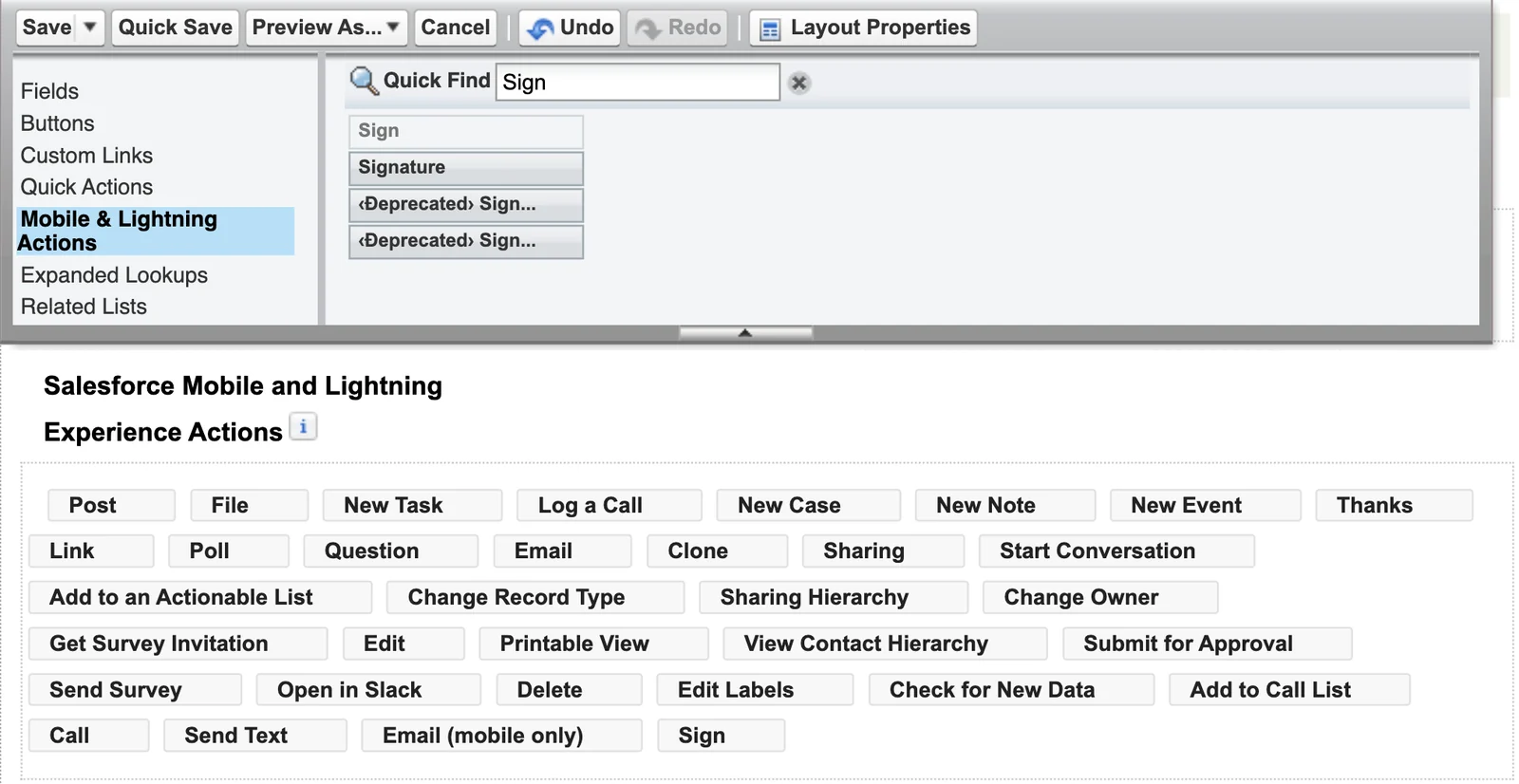
Drag Sign into the Salesforce Mobile and Lightning Experience Actions section.
In the palette at the top, click Mobile & Lightning Actions. Drag Sign, the action you made in step 3, into the section Salesforce Mobile and Lightning Experience Actions. Leave the items marked Deprecated.
If that section asks you to override the predefined actions, click the link to do so first.
Add the ß Signatures related list. Remove its New button.
In the palette, click Related Lists. Drag ß Signatures into the Related Lists section. Click the wrench icon on the new related list. Click the + beside Buttons to open that part. Untick New, and click OK. A new signature must start from the Sign button, so the New button only confuses users.
Signature Steps is a different related list. You do not need it.
Click Save.
Salesforce asks Save page layout changes?, with a box to overwrite users' personal related list customizations. Leave the box unticked, and save. Do the same on each layout that needs the Sign button.
Applies to
Simple Signature 5.8.x. These steps come from the tested Simple Signature implementation guide, where they sit with the steps before and after them.
Was this helpful?
Thank you. It helps us know which articles work.
Related
Still stuck?
Open a case and paste the exact error text. A person reads every case.