

Check one Salesforce setting
How to do it in Simple Signature, one step at a time.
Last updated 9 Oct 2026
The signature forms need Lightning Web Security. Without it, a form can show an error when it first opens. In many orgs it is on already. The paid features need two more settings. The paid setup covers them.
Open Session Settings.
Open Setup. In the Quick Find box, type Session Settings. Click Session Settings.
Find Use Lightning Web Security for Lightning web components and Aura components.
It sits in the Lightning Web Security section of the page. If the box is already ticked, you are done with this chapter.
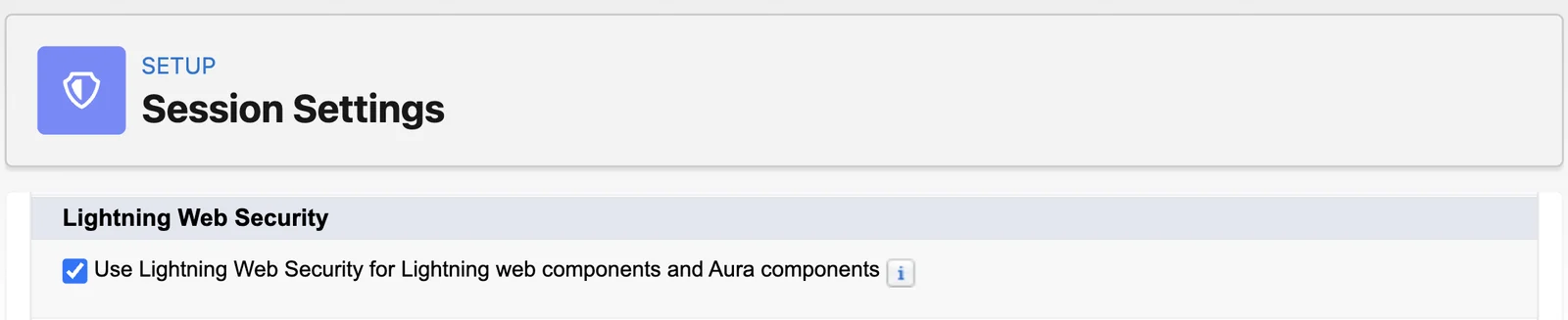
Tick the box. Then click Save.
Lightning Web Security changes how every Lightning component in the org runs. If your org has its own custom components, check them in the sandbox after this change.
Applies to
Simple Signature 5.8.x. These steps come from the tested Simple Signature implementation guide, where they sit with the steps before and after them.
Was this helpful?
Thank you. It helps us know which articles work.
Related
Still stuck?
Open a case and paste the exact error text. A person reads every case.