

Make a PDF page in Visualforce
How to do it in Simple Signature, one step at a time.
Last updated 9 Oct 2026
Paid version only. These steps do not count in the setup progress.
Use a Visualforce page if you do not use Google Docs. Most Visualforce pages need a developer, because each design is different. TAF builds pages at its hourly rate. Email [email protected].
The pages folder of the sample code on GitHub holds these pages to start from, among others. Their file names end in .html, but they hold Visualforce code.
| Page | What it is |
|---|---|
| SamplePDF_v2 | A copy of the standard PDF page of Simple Signature, BasicSignaturePDF. Change the logo and the layout as you need. |
| SampleAgreementPDF | A simple PDF laid out like a legal document, for example a non-disclosure agreement. |
| SampleOpportunityPDF | A quote from an Opportunity, with its product lines. It needs an Apex controller. See below. |
| SampleOpportunityPDF_noController | The same quote, with no controller. |
| SampleQuotePDF | A quote from a Quote, with its lines. It needs an Apex controller. See below. |
| CustomEmbeddedSignature | Not a PDF. A page for the Signature page layout, in place of the standard one. |
| CustomSignature_hardcoded | Not a PDF. A signing page for in-person signatures inside Salesforce. |
| Custom_SiteSignature | Not a PDF. A signing page for requests on the site. See Your own signing page. |
Open Visualforce Pages. Click New.
Open Setup. In the Quick Find box, type Visualforce Pages. Click Visualforce Pages. If you see no New button, ask your admin for the right to make pages.
Type a Label and a Name. Delete the code in the page.
For example, Label
Signature PDFand NameSignature_PDF. The Name can fill in by itself, with spaces. A Name takes no spaces, so type an underscore in place of each one.Paste the code of a sample page. Click Save.
On GitHub, open the page in the pages folder, for example SamplePDF_v2. Click Raw to see the code without the line numbers. Copy all the code, from
<apex:pageto</apex:page>. Paste it into Visualforce Markup.Give the profiles access to the page.
In the list of Visualforce pages, click Security beside the new page. Add all the profiles, or at least the profiles of the users who work with Simple Signature. Click Save.
Make Simple Signature use the page.
Use the page name with
c__in front, for examplec__Signature_PDF. Withoutc__, Simple Signature cannot find the page.For Where to put it All signatures Template VisualForce Page for PDF on the Configuration tab. See step 4 of Connect the site. One experience The parameter pdftemplate. See Document parameters for an experience.One request action A predefined value for PDF Template, in quote marks. Send a test request. Open the signed PDF.
Follow steps 6 to 9 of Send a signature request. The signed PDF in Notes & Attachments of the Signature now uses your page.
If no signed PDF comes, see The signer signed, but no PDF comes.
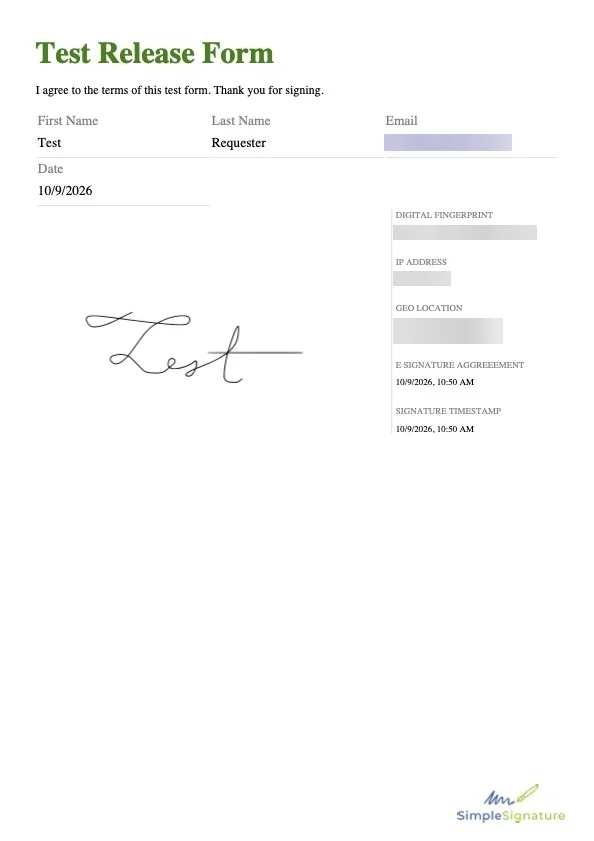
The Opportunity and Quote samples
These two samples need an Apex class, so make them in a sandbox and deploy them to production. Production does not let you write Apex directly.
- Open Setup. In the Quick Find box, type Static Resources. Click New. Name it
sampleinvoice. Pick the file SampleInvoice.zip from the resources folder on GitHub. Set Cache Control to Public. Click Save. - Open Apex Classes. Click New. Paste the code of SampleOpportunityPDFController or SampleQuotePDFController from the classes folder on GitHub. Click Save.
- Make one more class with the matching test class from the same folder. Salesforce needs it for the deploy to production.
- Make the page as in steps 1 to 5 above, with the code of SampleOpportunityPDF or SampleQuotePDF.
Other document apps
Simple Signature can also work with a document app such as Salesforce CPQ, S-Docs, Conga Composer or Nintex DocGen. This way needs a lot of technical work, so TAF advises Google Docs. Open a case if you need help.
If the app reads values from one object only, copy the signature to that object:
- On that object, make a Rich Text Area field
SignatureImage__cand a checkbox fieldSigned__c. - On ß Signature, make a lookup field to that object, if none exists.
- Build a Flow on ß Signature. When the Status changes to Signed, copy the Signature field, and the Date field if you need it, to the object.
- Put the new image field into the template of your document app.
A person who knows your document app then does the rest:
- Build a trigger that makes a Signature request from each new document. Start from CreateSignatureOnAttachments or CreateSignatureOnFile in the triggers folder on GitHub. Both expect a parent object named Quote__c. Change it to yours.
- When the Signature is Signed, make the document again, with a Flow or a trigger. The new document holds the signature.
Applies to
Simple Signature 5.8.x, paid version. These steps come from the tested Simple Signature implementation guide, where they sit with the steps before and after them.
Was this helpful?
Thank you. It helps us know which articles work.
Related
Still stuck?
Open a case and paste the exact error text. A person reads every case.