

Set up the addresses
How to do it in Address Verification, one step at a time.
Last updated 11 Oct 2026
Address Verification checks only the addresses on the Data Mapping tab. Each entry names an object, its address fields, and the fields where Address Verification writes the result. The app comes with fields for the standard addresses of Accounts, Contacts and Leads.
On the setup page, click the Data Mapping tab.
Click Create Default Records.
A message reads Reset Done Successfully. The list stays empty until you reload the page. Reload it.
The Address Configuration List now holds an entry for each standard address: Account Billing, Account Shipping, Contact Mailing, Contact Other and Lead. With Person Accounts, there is one more entry.
The Phone Configuration List gets a Contact Mobile entry. It is not active. Lower on the tab, more lists hold the entries for emails and other data.
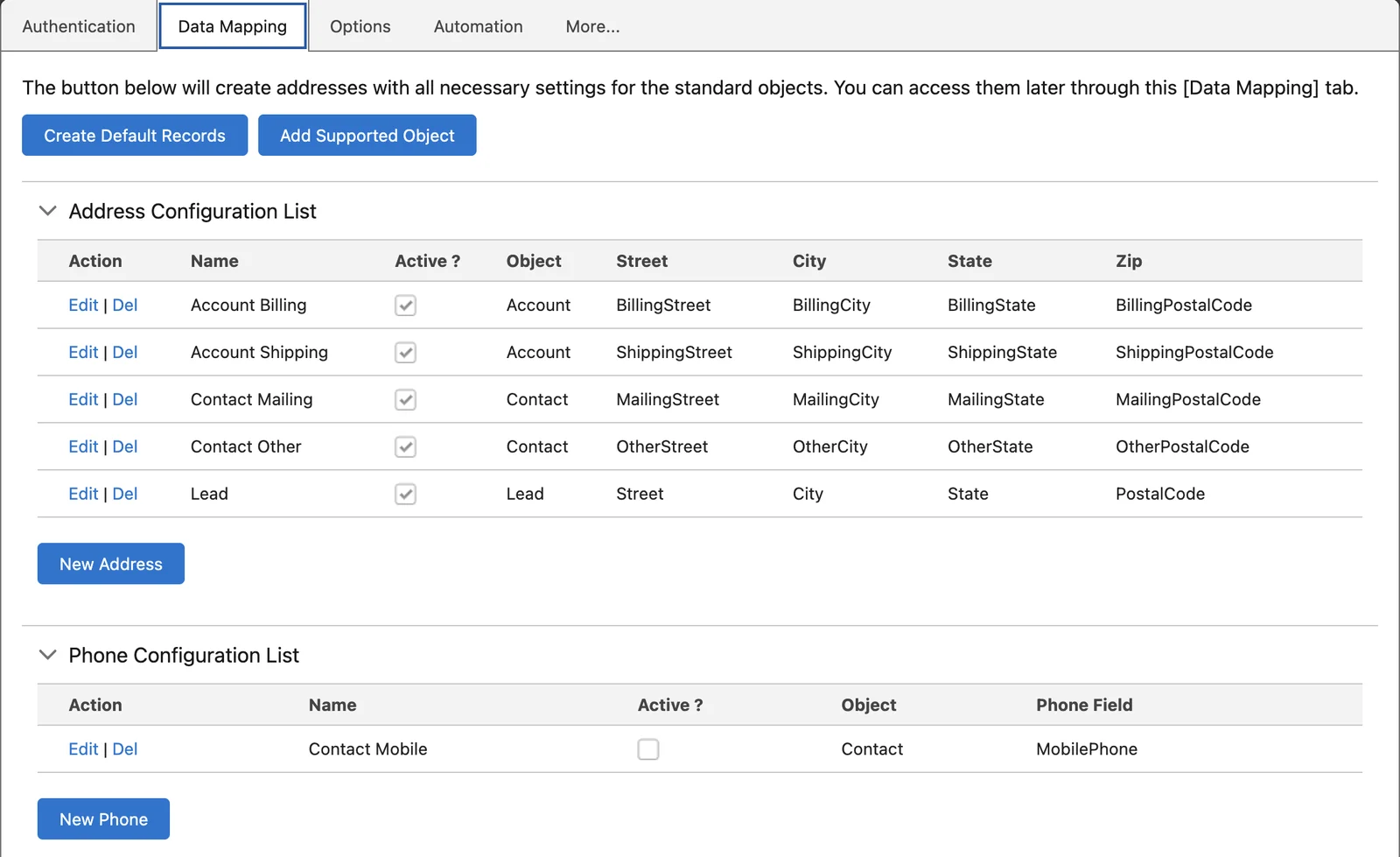
Click Edit beside Account Billing. Look at the fields.
A window shows the fields and the options of the entry. The required fields are already filled in: Street, City, State, Zip Code, Country, Verified, Last Verified, Return Code and Footnotes.
Some optional fields are filled in too, for example Latitude, Longitude, Clean Street, Do Not Verify and Verification Used.
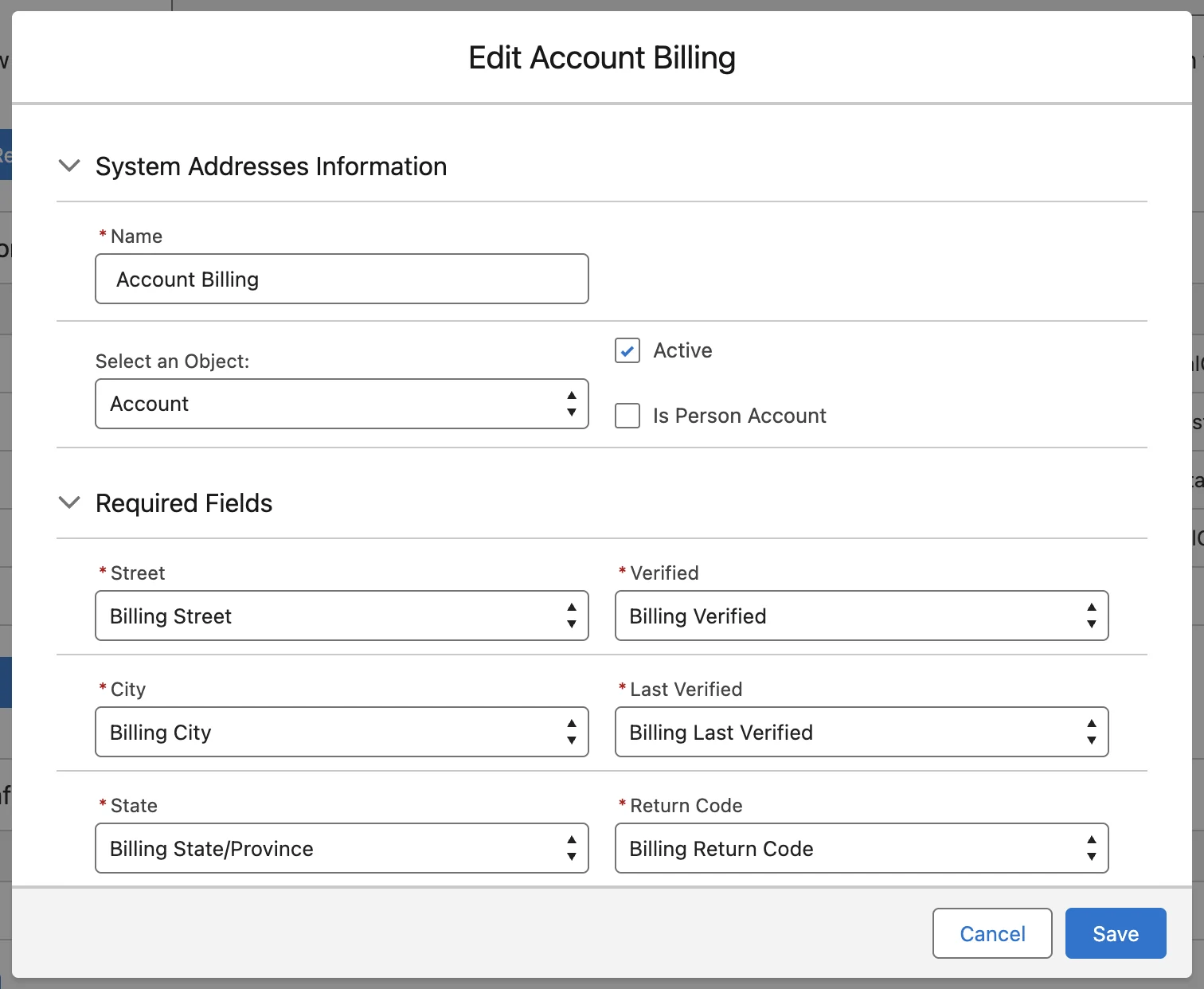
Set the options you need. Then click Save.
Most orgs leave the options as they are at first. See Address options below. If you change nothing, close the window.
To stop the checks of one address
Edit the entry and untick Active. This has the same effect as a delete, but you can tick the box again later.
Lead addresses and background checks
On a new install, the Automation tab has Active and Verify Addresses ticked for Lead. With Verify Addresses ticked, Address Verification can check new and changed Lead addresses in the background. Each check uses a lookup.
If you do not want these checks yet, open the Automation tab. Click Edit beside Lead. Untick Verify Addresses. Save the change. See Verify records in the background.
The fields of an entry
| Field | What it holds |
|---|---|
| Name | Any name. Start it with the object name. |
| Object | The object of the address. Add an object that is not in the list with Add Supported Object. |
| Active | Turns the checks of this address on or off. |
| Street, City, State, Zip Code, Country | The address fields. All five are required. |
| Is Person Account | On Account only. The entry is for Person Account records. |
| Verified | Required. A checkbox that Address Verification ticks when the address is verified. A ticked address is not checked again, so it does not use a second lookup. |
| Last Verified | Required. The date and time of the last check, also when the address is no longer verified. |
| Return Code | Required. The result of the check. See Read the results. |
| Footnotes | Required. Notes about the check. |
| Optional fields | More data from Smarty, for example County, Latitude, Longitude, Time Zone and Zip Plus 4. Map each one to a field on the object. |
| Force Latin?, Force Native? | International addresses only. Writes the address in Latin letters, or in the local script of the country. |
Address options
Each entry has its own options, at the bottom of the edit window. The options under For Autocomplete Lightning Component Only: work only with the autocomplete component.
| Option | What it does |
|---|---|
| Don't Overwrite Street1, City, State or Zip Code | Keeps the value that the user typed in that field, in place of the value from Smarty. |
| Truncate Values Longer Than Mapped Fields | Cuts a value that is too long for its field. The cut address may be wrong for shipping. Map a Complete Address field as a backup. |
| Clear all verified fields after address change | Clears every mapped field when the address changes. Without it, only Verified and Return Code change. |
| Clean Address Prior to Verification | Fills the Clean Street field with a short, standard form of the street. Use it to find duplicates, never for shipping. |
| Only 5 Digits on Zip Code | Writes the five-digit ZIP Code, without the four extra digits. |
| Separate Unit Field | Writes the apartment or suite number only in the Unit field, not on the first line of the street. |
| Less Strict Verifications/Enhanced Data | Confirms addresses that exist but are not registered with the USPS, with the result Confirmed - May be Undeliverable. The Enhanced Matching option needs it. |
| Populate Info from Unknown Addresses | Writes all the data Smarty knows, also for an address that is not registered or is bad. |
| Remove Additional Info from Street 1 | Removes extra text from the street before the check, also suites and apartments. This can make an address undeliverable. Use it with care. |
| Run Enrichment API | Calls the Smarty Address Enrichment service after the check. It needs an Enrichment plan. |
| Allow Verifications with no Street | Checks only the City, State and ZIP Code when the street is empty. It still uses a lookup. |
| Use FedEx Address Standards | Applies the FedEx field lengths. Extra text moves from the first street line to the second. |
| Always Use Locality for City on International | Fills City with the Locality from Smarty, for international addresses. |
| Stop If Not Fully Confirmed | Autocomplete only. Stops a save when the address is not fully confirmed. |
| Stop record creation on bad addresses | Autocomplete only. Removes the Use as it is button for an address that cannot be verified. |
| Use Street 2, Use Street 3, Use Street 4 | Autocomplete only. Adds a box for that street line. Map the field too. |
| Do Not Check For Address | Autocomplete only. Lets a user save a record with no address. |
| Copy Parent to Child Address | Autocomplete only. Copies the address of the parent, for example the Account, to a new child record. |
Applies to
Address Verification 7.3.x. These steps come from the tested Address Verification implementation guide, where they sit with the steps before and after them.
Was this helpful?
Thank you. It helps us know which articles work.
Related
Still stuck?
Open a case and paste the exact error text. A person reads every case.