

Verify addresses on a custom object
How to do it in Address Verification, one step at a time.
Last updated 11 Oct 2026
Only for orgs that keep addresses on a custom object.
Address Verification works on custom objects too. You make the result fields on the object, add an entry on the Data Mapping tab and make a Verify action. Then a Flow marks a changed address, in the next chapter.
Do this in a sandbox first. The examples use an object named Location.
Make the required fields on your object.
Open Setup. Click Object Manager. Click your object. Click Fields & Relationships. For each field in the table, click New. Pick the type. Click Next.
Type the label. For a text field, type the length. For a number, type the length and the decimal places, for example 12 and 6 for Number(12, 6). Click Next.
Keep the field visible for the profiles that work with addresses. Click Next. Click Save.
Example label Type What it holds Street Text(255) Most objects already have it. City Text(128) Most objects already have it. State Text(20) Most objects already have it. Zip Code Text(20) Most objects already have it. Country Text(64) Most objects already have it. Address Verified Checkbox Ticked when the address is verified. Verify skips an address whose box is ticked. Address Last Verified Date/Time The date and time of the last check. Address Return Code Text(40) The result of the check. See Read the results. Footnotes Long Text Area Notes about the check. If the object holds more than one address, make a set of fields for each one. Start each label with the name of the address, for example Site Street and Site Address Verified.
Optional: make fields for more data.
Address Verification can fill many more fields, for example County, Latitude and Time Zone. See Optional fields for an address below. Make only the ones you need.
A Lookup field has one more page, Related To. For Verified By, pick User there.
On the Data Mapping tab, click Add Supported Object, if your object is new to Address Verification.
Open the Address Verification setup page. Click the Data Mapping tab. Click Add Supported Object. A window named New Supported Object opens.
Field Value Label The name of your object, for example LocationActive On API Name The API name of your object, for example Location__cVerify Addresses, Verify Phones, Verify Emails Off. These turn on checks in the background, and each check uses a lookup. Leave the other fields as they are. Click Save. Reload the page. Your object now shows in the Select an Object list of a new entry, and on the Automation tab.
Skip this step if your object already shows in the Select an Object list.
Click New Address. Fill in the entry. Then click Save.
Type a Name that starts with the object name, for example
Location Site. Select your object. Tick Active.Under Required Fields, pick the fields from step 1: Street, City, State, Zip Code, Country, Verified, Last Verified, Return Code and Footnotes. Map the optional fields you made in step 2.
Some optional fields have short names in the entry, for example DST for Daylight Savings. The options at the bottom work as for the standard addresses. See Address options.
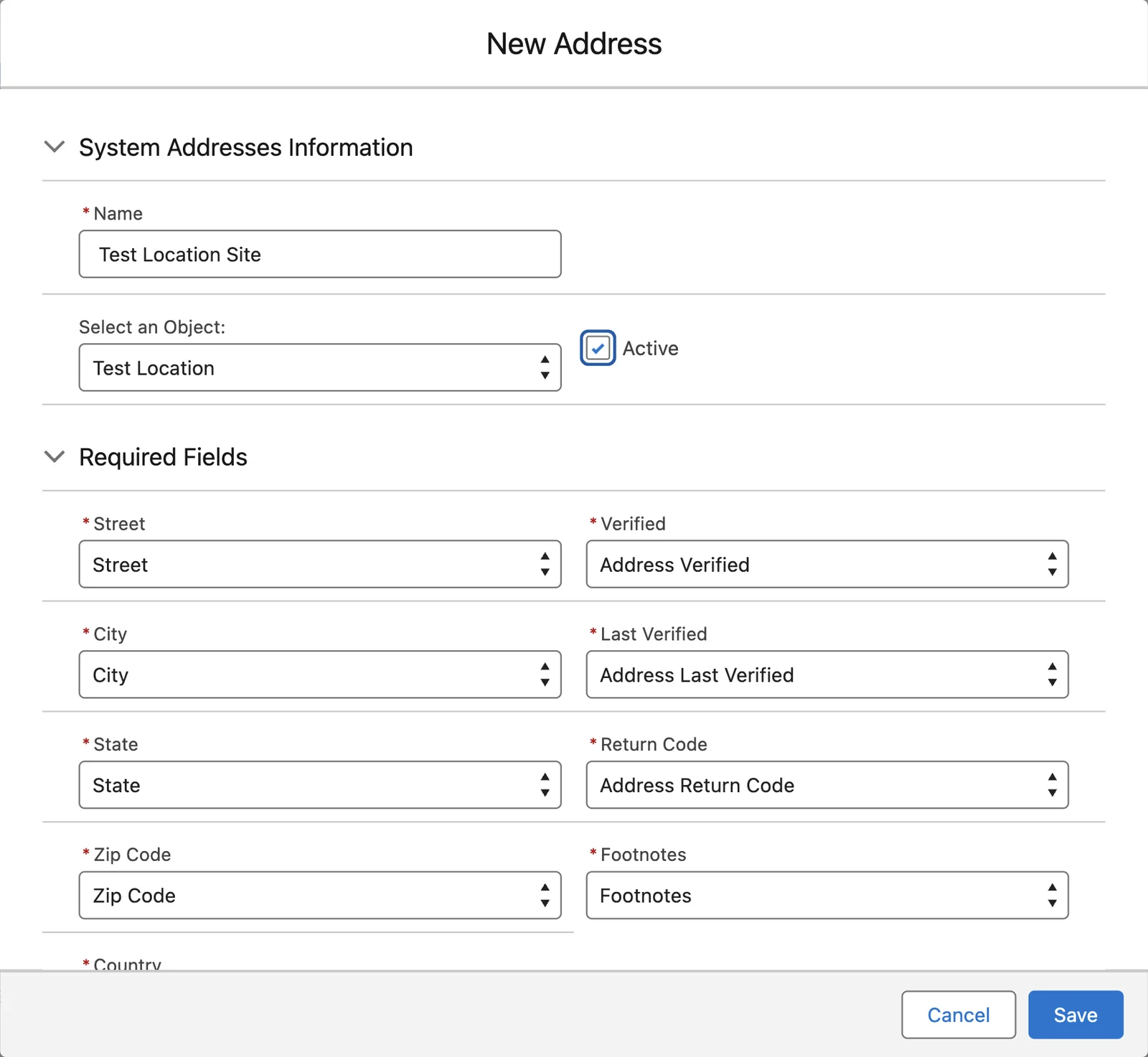
Make a Verify action for your object.
Go back to your object in Object Manager. Click Buttons, Links, and Actions. Click New Action. Fill in the form:
Field Value Action Type Lightning Component Lightning Component smartystreets:VerifyAddressesLWCHeight 0Label Verify AddressClick Save.
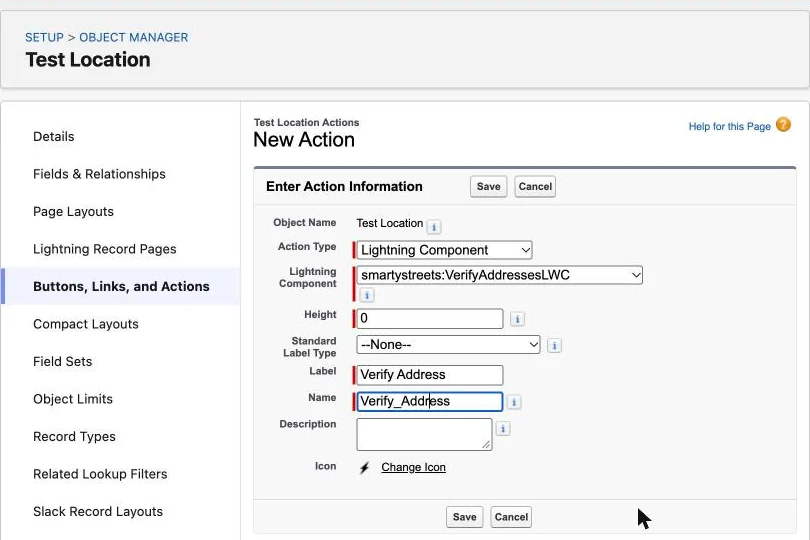
Add Verify Address to the page layout.
Click Page Layouts. Open the layout your users work with. In the palette, click Mobile & Lightning Actions. Drag Verify Address into the Salesforce Mobile and Lightning Experience Actions section. Click Save.
If the section asks you to override the predefined actions, click the link first. Do the same on each layout that needs the button.
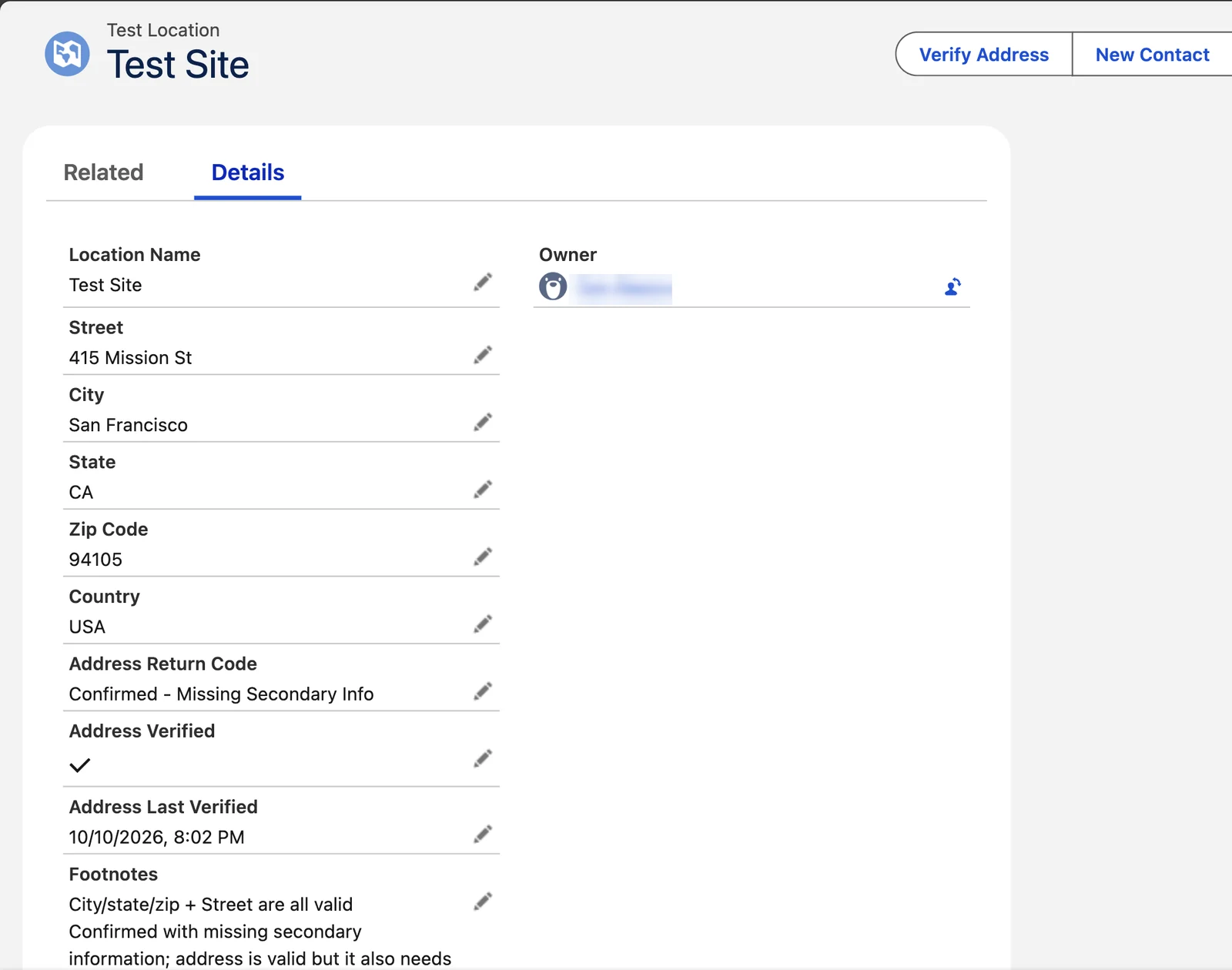
Open a record with a US address. Click Verify Address.
A small Verify Address window opens for about three seconds, with a Cancel button. Then it closes. A message reads Record Updated, with the result, for example Addresses Partially Verified. The page then shows the result. The check uses one lookup.
If you mapped Zip Plus 4, the four extra digits of the ZIP Code go there, and Zip Code keeps five digits.
Add the Flow from the next chapter
On a custom object, nothing unticks Address Verified when the address changes. Verify then skips the changed address. Build the Flow in Mark changed addresses on a custom object.
The Verify and Confirm component and the Verify and Save button work on a custom object too. See Add the Verify and Confirm button.
To see who changed an address, turn on field history for each address field: Street, City, State, Zip Code and Country. See Track address changes.
Address Enrichment
Address Enrichment brings in more data about an address from Smarty, for example property data. It needs its own Smarty plan. This guide does not cover its setup. To buy it and set it up, email [email protected].
Optional fields for an address
Make the ones you need, with the type shown. Then map each one in the address entry.
| Example label | Type | What it holds |
|---|---|---|
| Barcode | Text(32) | The barcode value. A formula can show it as a picture. See Formula fields. |
| Carrier Route | Text(4) | The carrier route code of the post office. |
| City Nickname | Long Text Area(3,000) | Informal names of the city, if Smarty has them. |
| Clean Street | Text(255) | A short, standard form of the street. Address Verification uses it to update addresses it verified before. |
| Congressional District | Text(2) | The code of the congressional district. |
| County | Text(64) | The name of the county. |
| County FIPs Code | Text(32) | The federal code of the county. |
| County Nickname | Long Text Area(1,000) | Informal names of the county. It needs the County field too. |
| Daylight Savings | Checkbox | Ticked when the address uses daylight saving time. The entry calls it DST. |
| Do Not Verify | Checkbox | Tick it to keep the address out of future checks. Mostly for background checks. |
| Is Active | Checkbox | From the USPS. Ticked when the address gets mail now. |
| Is Vacant | Checkbox | From the USPS. Ticked when nobody picked up the mail for some time. |
| Island | Text(100) | The name of a Hawaiian or Spanish island. Smarty seldom has it. |
| Latitude, Longitude | Number(12, 6) | The location of the address on a map. |
| Match Details | Text(100) | How Smarty matched the address, for example postal-match or missing-secondary. |
| RDI | Text(32) | From the USPS. Residential or Commercial. |
| Record Type | Text(1) | A one-letter code for the type of address: F (Firm), G (General Delivery), H (High-Rise), P (P.O. Box), R (Rural Route) or S (Street). |
| Smarty Key | Text(100) | The ID of the address at Smarty. Address Enrichment needs it, so TAF advises to map it. |
| State Nickname | Long Text Area(1,500) | Informal names of the state. |
| Street 2 | Text(128) | The second line of the street. Without this field, the second line stays in Street. |
| Street 3, Street 4 | Text(128) | More lines of the street. Seldom used, and never for a US address. |
| Time Zone | Text(48) | The name of the time zone. |
| Unit | Text(64) | The apartment, suite or unit number. |
| Urbanization | Text(64) | The urbanization, a part of some Puerto Rico addresses. The entry says it does not apply with Enhanced Matching. |
| UTC Offset | Number(16, 2) | The hours between the time zone of the address and UTC, the world standard time. |
| Verification Used | Picklist | The service that checked the address: Smarty, Google Maps or UPS. |
| Verified By | Lookup(User), or Text(18) | The user who verified the address. The entry calls it Verified By User. |
| Zip Plus 4 | Text(4) | The last four digits of the ZIP Code. With this field mapped, Zip Code keeps five digits. |
Fields for international addresses
Make these fields only if you verify addresses outside the US. See International addresses.
| Example label | Type | What it holds |
|---|---|---|
| Address Format | Text(255) | The order of the address parts for mail to that country. |
| Address Precision | Text(255) | How exact the check was. From best to worst: Delivery Point (the building entrance), Premise (the property), Thoroughfare (the street), Locality (the city), Administrative Area (the state or province), None. |
| Administrative Area | Text(255) | The main division of the country, for example a region. |
| Complete Address | Text Area | The whole address, in the order of Address Format. |
| Dependent Locality | Text(64) | More detail about the city, for example a neighborhood. |
| Dependent Locality Name | Text(64) | The name of the dependent locality, if it has one. |
| Geocode Precision | Text(255) | How exact the latitude and longitude are. Same values as Address Precision. |
| Organization | Text(255) | The name of the company at the address. Seldom filled. |
| Post Box | Text(64) | The type and number of a post office box. |
| Premise | Text(64) | The house or building number. |
| Premise Extra | Text(64) | More detail about the premise. It may help, but it is not official. |
| Sub Building Number | Text(64) | The number of a part of the building. |
| Sub Building Type | Text(64) | The type of that part, for example a floor or a unit. |
| Super Administrative Area | Text(255) | The largest division of the country. The entry calls it Super Admin. Area. |
| Thoroughfare (Complete) | Text(255) | The whole street name, for example N Main St SW. |
| Thoroughfare Name | Text(255) | The name part of the street, for example Main. |
Formula fields that show the result
These formula fields show the data in a form that is easy to read. Make each one as a Formula field with the return type Text. Paste the formula.
Replace each word in capitals with the API name of your field, for example RETURNCODE with Address_Return_Code__c. Click Check Syntax. Then save the field.
Address Status shows the result with an icon. Replace RETURNCODE with your Return Code field.
If(RETURNCODE = "Confirmed", IMAGE("/img/msg_icons/confirm16.png", "Confirmed", 16, 16) & " Confirmed",
If(RETURNCODE = "Partial", IMAGE("/img/msg_icons/warning16.png", "Confirmed - Partially", 16, 16) & " Confirmed - Partially",
If(left(RETURNCODE,9) = "Confirmed", IMAGE("/img/msg_icons/warning16.png", RETURNCODE, 16, 16) & " " & RETURNCODE,
If(RETURNCODE = "Bad or Blank Address", IMAGE("/img/msg_icons/error16.png", "Blank Address", 16, 16) & " Bad or Blank Address",
If(RETURNCODE = "Not Submitted", IMAGE("/img/msg_icons/error16.png", "Not Submitted", 16, 16) & " Not Submitted",
If(RETURNCODE = "Not Confirmed", IMAGE("/img/msg_icons/error16.png", "Not Confirmed", 16, 16) & " Not Confirmed",
IMAGE("/img/msg_icons/info16.png", "Not Yet Verified", 16, 16) & " Not Yet Verified"))))))Geolocation Link shows the latitude and longitude with a link to Google Maps. Replace LAT with your Latitude field. Replace LONG with your Longitude field.
if ( not ( isBlank ( LAT ) ), text( LAT )+" "+text( LONG ) + " " +
HYPERLINK("https://www.google.com/maps/place/"+text( LAT )+","+text( LONG ), "map", "_blank"), "" )Record Type Description shows the word for the code in Record Type. Replace RECORDTYPE with your Record Type field.
If(RECORDTYPE = "F", "Firm",
If(RECORDTYPE = "G", "General Delivery",
If(RECORDTYPE = "H", "High-Rise",
If(RECORDTYPE = "P", "P.O. Box",
If(RECORDTYPE = "R", "Rural Route",
If(RECORDTYPE = "S", "Street", "" ) ) ) ) ) )Barcode Image shows the barcode as a picture. Replace BARCODE with your Barcode field. The picture comes from barcodesinc.com, an outside web site.
if ( not ( isblank ( BARCODE ) ), IMAGE("https://www.barcodesinc.com/generator/image.php?code=" + BARCODE +
"&style=196&type=C128B&width=206&height=50&xres=1&font=3", "Address Barcode" ), "" )Current Time shows the time at the address now, for US addresses only. Replace HOUROFFSET with your UTC Offset field. Replace DAYLIGHTSAVINGS with your Daylight Savings field.
IF(ISBLANK(HOUROFFSET), "",
  IF (AND( DAYLIGHTSAVINGS,
        TODAY() >=
        CASE(MOD(DATE(YEAR(TODAY()),3,8) - DATE(1900,1,7),7),
        0, DATE(YEAR(TODAY()),3,8),
        1, DATE(YEAR(TODAY()),3,8)+6,
        2, DATE(YEAR(TODAY()),3,8)+5,
        3, DATE(YEAR(TODAY()),3,8)+4,
        4, DATE(YEAR(TODAY()),3,8)+3,
        5, DATE(YEAR(TODAY()),3,8)+2,
        DATE(YEAR(TODAY()),3,8)+1),
        TODAY() <
        CASE(MOD(DATE(YEAR(TODAY()),11,1) - DATE(1900,1,7),7),
        0, DATE(YEAR(TODAY()),11,1),
        1, DATE(YEAR(TODAY()),11,1)+6,
        2, DATE(YEAR(TODAY()),11,1)+5,
        3, DATE(YEAR(TODAY()),11,1)+4,
        4, DATE(YEAR(TODAY()),11,1)+3,
        5, DATE(YEAR(TODAY()),11,1)+2,
        DATE(YEAR(TODAY()),11,1)+1)),
    /* CALCULATE FOR IT BEING CURRENTLY DST */
    MID( TEXT( NOW()+ (HOUROFFSET +1) /24 ), 6, 2 ) & "/" &
    MID( TEXT( NOW()+ (HOUROFFSET +1) /24 ), 9, 2 ) & "/" &
    LEFT( TEXT( NOW()+ (HOUROFFSET +1) /24 ), 4 ) & " " &
    TEXT( IF( OR(
          VALUE( MID( TEXT( NOW()+ (HOUROFFSET +1) /24 ), 12, 2 ) ) = 0,
          VALUE( MID( TEXT( NOW()+ (HOUROFFSET +1) /24 ), 12, 2 ) ) = 12), 12,
            VALUE( MID( TEXT( NOW()+ (HOUROFFSET +1) /24 ), 12, 2 ) ) -
            IF( VALUE( MID( TEXT( NOW()+ (HOUROFFSET +1) /24 ), 12, 2 ) ) < 12, 0, 12 )))
    &":"& MID( TEXT( NOW()+ (HOUROFFSET +1) /24 ), 15, 2 ) &" "&
    IF( VALUE( MID( TEXT( NOW()+ (HOUROFFSET +1) /24 ), 12, 2 ) ) < 12, "AM", "PM"
    ),
    /* CALCULATE FOR IT NOT BEING CURRENTLY DST */
    MID( TEXT( NOW()+ HOUROFFSET /24 ), 6, 2 ) & "/" &
    MID( TEXT( NOW()+ HOUROFFSET /24 ), 9, 2 ) & "/" &
    LEFT( TEXT( NOW()+ HOUROFFSET /24 ), 4 ) & " " &
    TEXT( IF( OR(
          VALUE( MID( TEXT( NOW()+ HOUROFFSET /24 ), 12, 2 ) ) = 0,
          VALUE( MID( TEXT( NOW()+ HOUROFFSET /24 ), 12, 2 ) ) = 12), 12,
            VALUE( MID( TEXT( NOW()+ HOUROFFSET /24 ), 12, 2 ) ) -
            IF( VALUE( MID( TEXT( NOW()+ HOUROFFSET /24 ), 12, 2 ) ) < 12, 0, 12 )
      )
    )
    &":"& MID( TEXT( NOW()+ HOUROFFSET /24 ), 15, 2 ) &" "&
    IF( VALUE( MID( TEXT( NOW()+ HOUROFFSET /24 ), 12, 2 ) ) < 12, "AM", "PM"
)))Verified By shows the user who verified the address, with the date and time. Give it a Field Name other than the one of your Verified By field, for example Verified_By_Info. Two fields cannot share a field name. The label can be the same. Replace VERIFIEDUSERID with your Verified By field. Replace VERIFIEDUSERNAME with the name of that user, for example Verified_By__r.FirstName & " " & Verified_By__r.LastName. Replace LASTVERIFIED with your Last Verified field.
The formula shows the time 5 hours behind UTC. For another time zone, change each 5/24.
if ( not ( isblank ( VERIFIEDUSERID ) ),
HYPERLINK("/" & VERIFIEDUSERID, VERIFIEDUSERNAME, "_Top") &
IF( ISBLANK( LASTVERIFIED ), "", ", " &
TEXT(MONTH(DATEVALUE(LASTVERIFIED)))+"/" +TEXT(DAY(DATEVALUE(LASTVERIFIED)))+"/"
+TEXT(YEAR(DATEVALUE(LASTVERIFIED))) & " " &
IF(OR(VALUE( MID( TEXT( LASTVERIFIED - (5/24) ), 12, 2 ) ) = 0,
VALUE( MID( TEXT( LASTVERIFIED - (5/24) ), 12, 2 ) ) = 12), "12",
TEXT( VALUE( MID( TEXT( LASTVERIFIED - (5/24) ), 12, 2 ) ) -
IF(VALUE( MID( TEXT( LASTVERIFIED - (5/24) ), 12, 2 ) ) < 12, 0,12))) & ":" &
MID( TEXT( LASTVERIFIED - (5/24) ), 15, 2 ) & " " &
IF( VALUE( MID( TEXT( LASTVERIFIED - (5/24) ), 12, 2 ) ) < 12, "AM","PM")), "")Applies to
Address Verification 7.3.x. These steps come from the tested Address Verification implementation guide, where they sit with the steps before and after them.
Was this helpful?
Thank you. It helps us know which articles work.
Related
Still stuck?
Open a case and paste the exact error text. A person reads every case.