

Add the Verify and Confirm button
How to do it in Address Verification, one step at a time.
Last updated 11 Oct 2026
Optional. Skip this chapter if the Verify Addresses action is enough.
Two components sit on the record page itself. They work for physical addresses only.
| Component | What it does |
|---|---|
| verifyAndConfirm | Shows the result before the save, with each changed value in red. The user clicks Confirm or Cancel. It also has a Verify and Save button. |
| verifyAndSaveButton | Checks and saves in one click, a little faster. It takes less room on the page. |
You need only one of them, because verifyAndConfirm holds both buttons. A third component, verifyAndConfirmEnrichment, is for use with TAF support only.
Open a test Account. Click the gear icon at the top right. Click Edit Page.
The Lightning App Builder opens. Components sit in the left panel, the page sits in the middle, and the settings of the item you click sit in the right panel.
Drag verifyAndConfirm onto the page.
verifyAndConfirmType
verifyAndConfirmin the search box of the left panel. Find it under Custom - Managed. Drop it at the top of a column, for example the right column.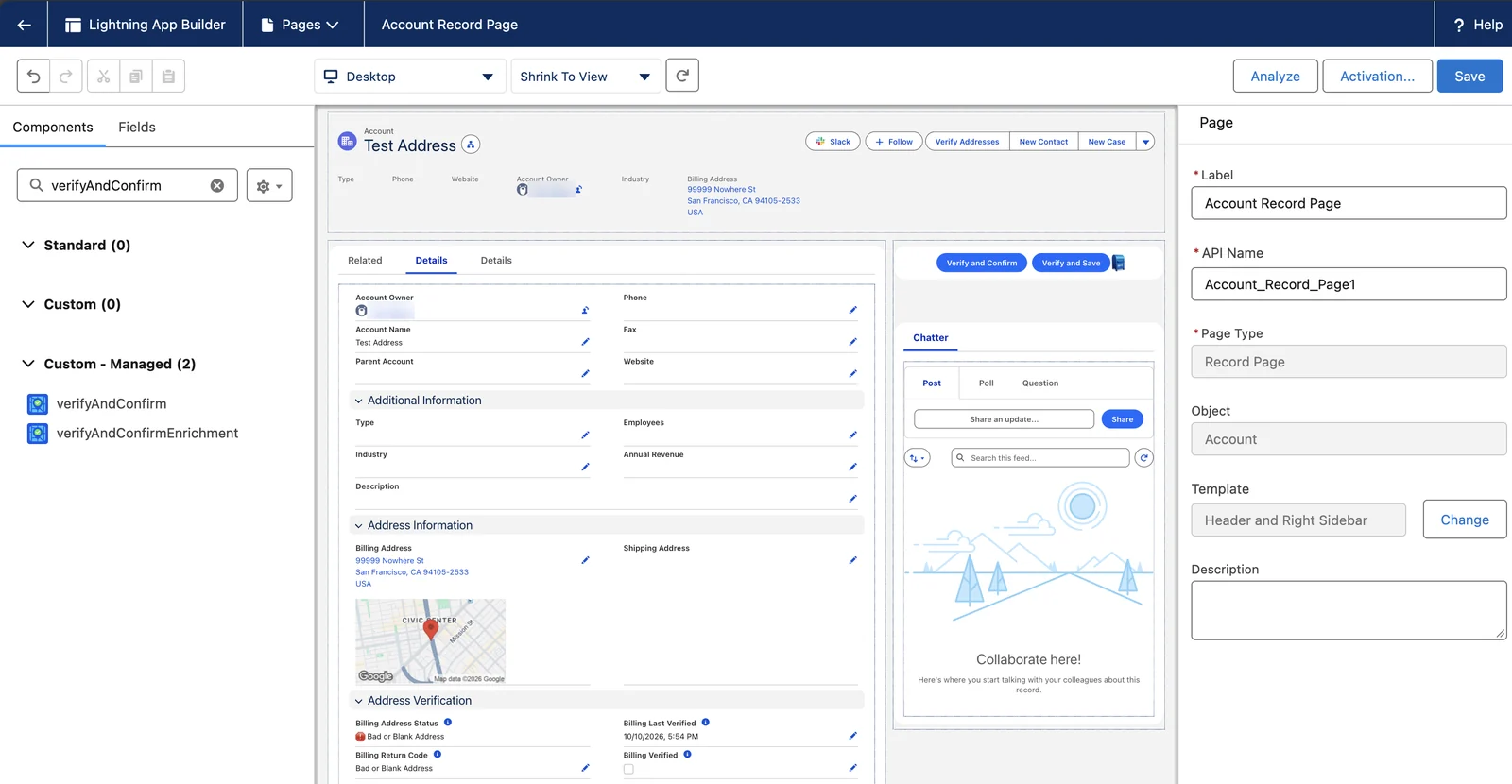
Click the component. Set its two options.
Option What it does Hide Verify And Save No shows the Verify and Save button too. Yes hides it, so users always see the changes first. Always Display Addresses Yes shows the addresses on the component, also after the check. Click Save. Activate the page, if Salesforce asks.
Salesforce asks only when the page is not active yet. Click Activate. Click Assign as Org Default. Choose Desktop. Click Next. Salesforce shows a review of the assignment. Click Save.
Click Back. Click Verify and Confirm.
Back is the arrow (←) at the top left of the Lightning App Builder. The record opens. Click Verify and Confirm. The component shows the result for each address, with each changed value in red.
This check uses a lookup only for an address that is not verified yet. To see a change in red, first edit the test address. For example, change the street to
415 mission streetand save. Then click Verify and Confirm.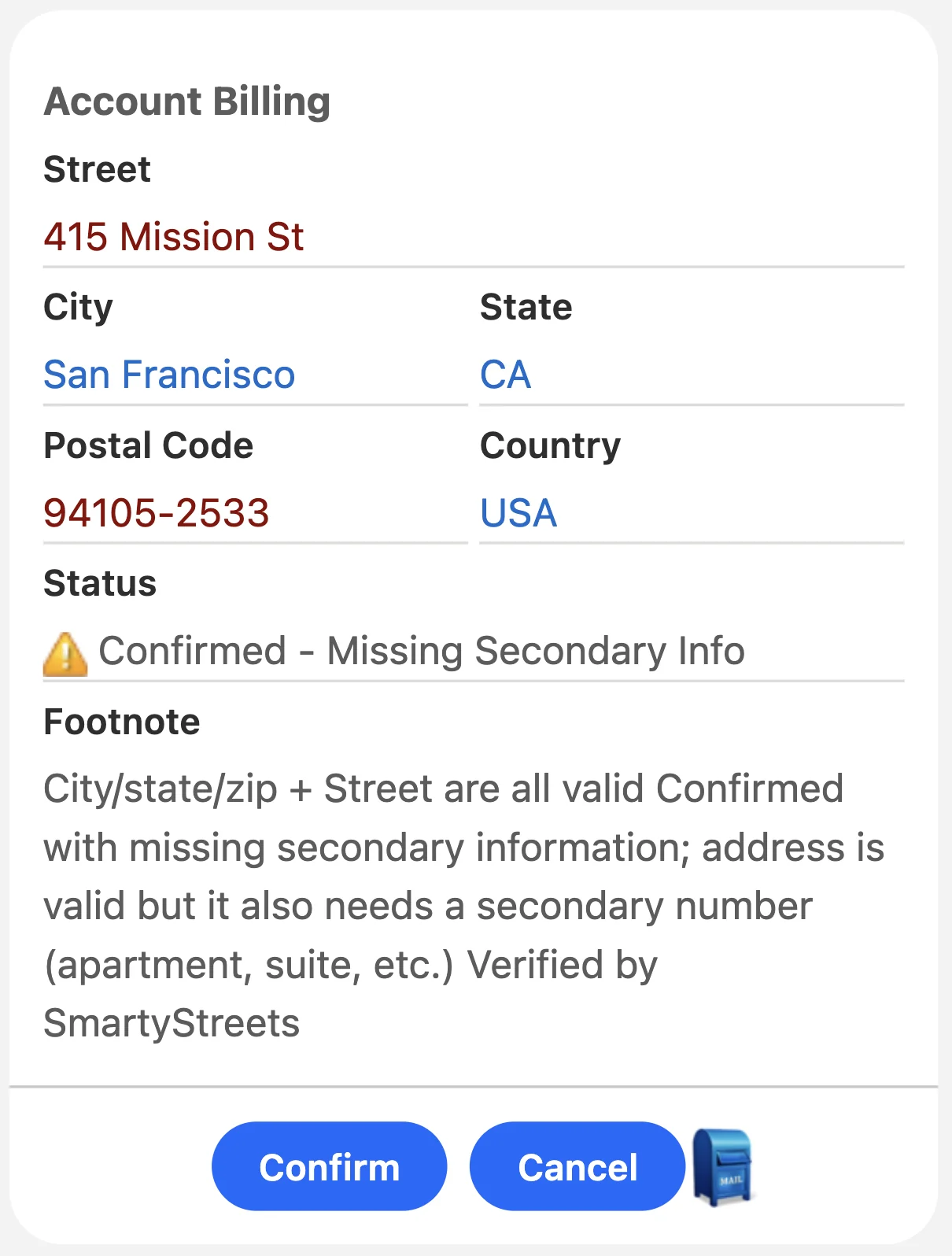
Click Confirm.
Address Verification saves the result to the record. With Cancel, nothing changes on the record, but the check still used a lookup.
Applies to
Address Verification 7.3.x. These steps come from the tested Address Verification implementation guide, where they sit with the steps before and after them.
Was this helpful?
Thank you. It helps us know which articles work.
Related
Still stuck?
Open a case and paste the exact error text. A person reads every case.