

Verify records with a Flow
How to do it in Address Verification, one step at a time.
Last updated 11 Oct 2026
Optional. A way without code to verify records on any object.
A record-triggered Flow can run the Verify Address action after a save. This chapter uses the custom object from Verify addresses on a custom object.
Two Flows on one object
The Flow from Mark changed addresses on a custom object unticks Address Verified when the address changes. This Flow then verifies the new address. Each change of an address uses a lookup.
Open Flows. Click New Flow. Click Record-Triggered Flow.
In the Quick Find box, type Flows. Click Flows. Click New Flow. Flow Builder opens in a new browser tab. Under Frequently Used, click Record-Triggered Flow.
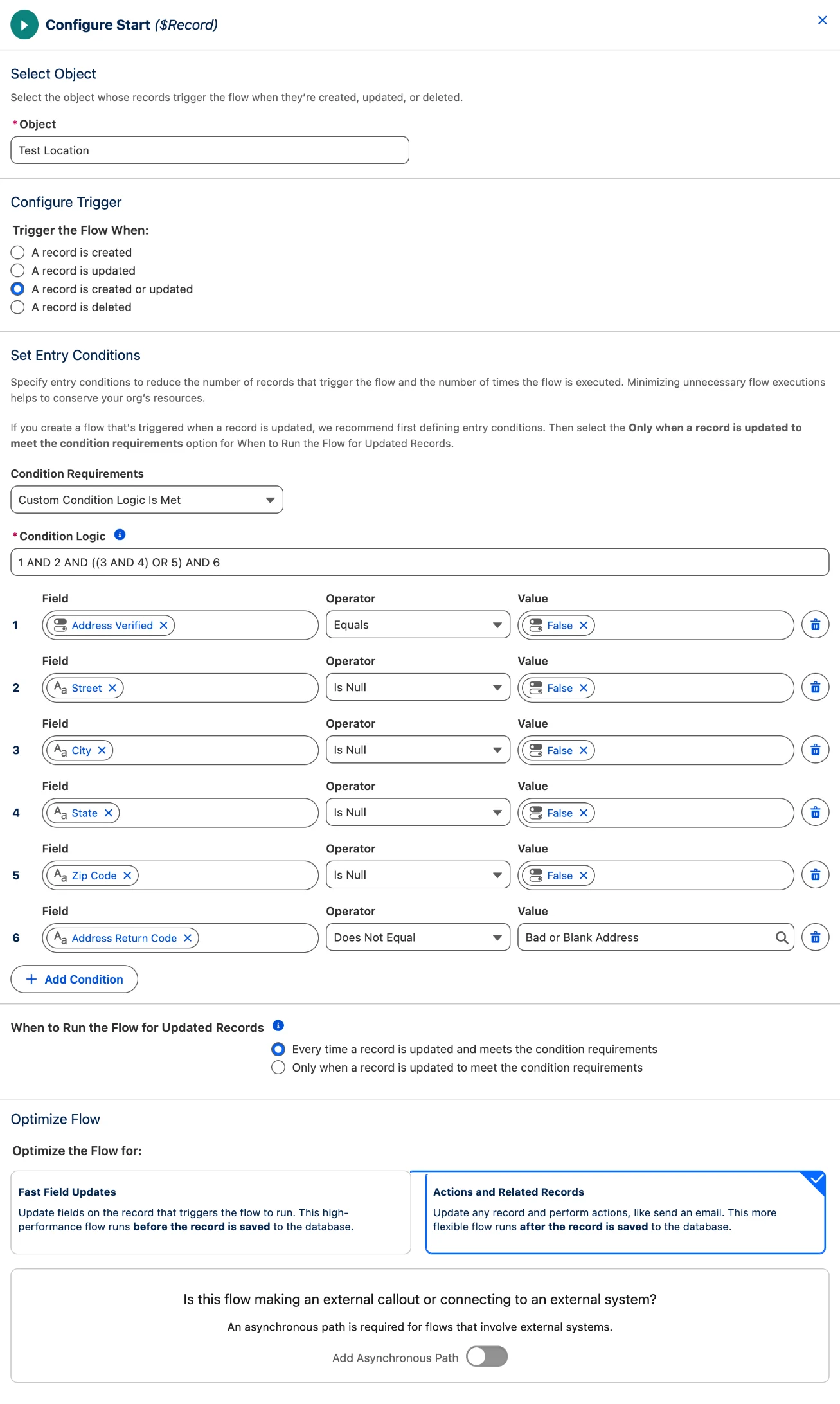
Set the object and the trigger.
Setting Value Object Your object, for example Location Trigger the Flow When A record is created or updated Condition Requirements Custom Condition Logic Is Met Add the six conditions.
Click Add Condition for each new row. For True or False, pick the value under Global Constants.
Row Field Operator Value 1 Address Verified Equals False 2 Street Is Null False 3 City Is Null False 4 State Is Null False 5 Zip Code Is Null False 6 Address Return Code Does Not Equal Bad or Blank AddressType the condition logic.
The Condition Logic box sits above the conditions. Replace its value with:
1 AND 2 AND ((3 AND 4) OR 5) AND 6The Flow goes on when the address is not verified, Street is filled, and City and State, or Zip Code, are filled. With row 6, the Flow does not send a bad address to Smarty again and again.
Pick Every time a record is updated. Keep Actions and Related Records.
Under When to Run the Flow for Updated Records, pick Every time a record is updated and meets the condition requirements. Under Optimize the Flow for, keep Actions and Related Records, the default. This Flow runs after the save.
Leave Add Asynchronous Path off, at the bottom of the panel.
Click + under the start. Click Action. Search for Verify. Pick Verify Address.
The list shows Verify Address, Verify Email and Verify Phone. For email addresses, pick Verify Email. For phone numbers, pick Verify Phone.
Type a Label. Set recordIds to the ID of the record.
Type a Label, for example
Verify. Under Set Input Values, click the recordIds box. Pick Triggering and your object, then Record ID. The box shows the value as a pill, for example Triggering Location__c > Record ID.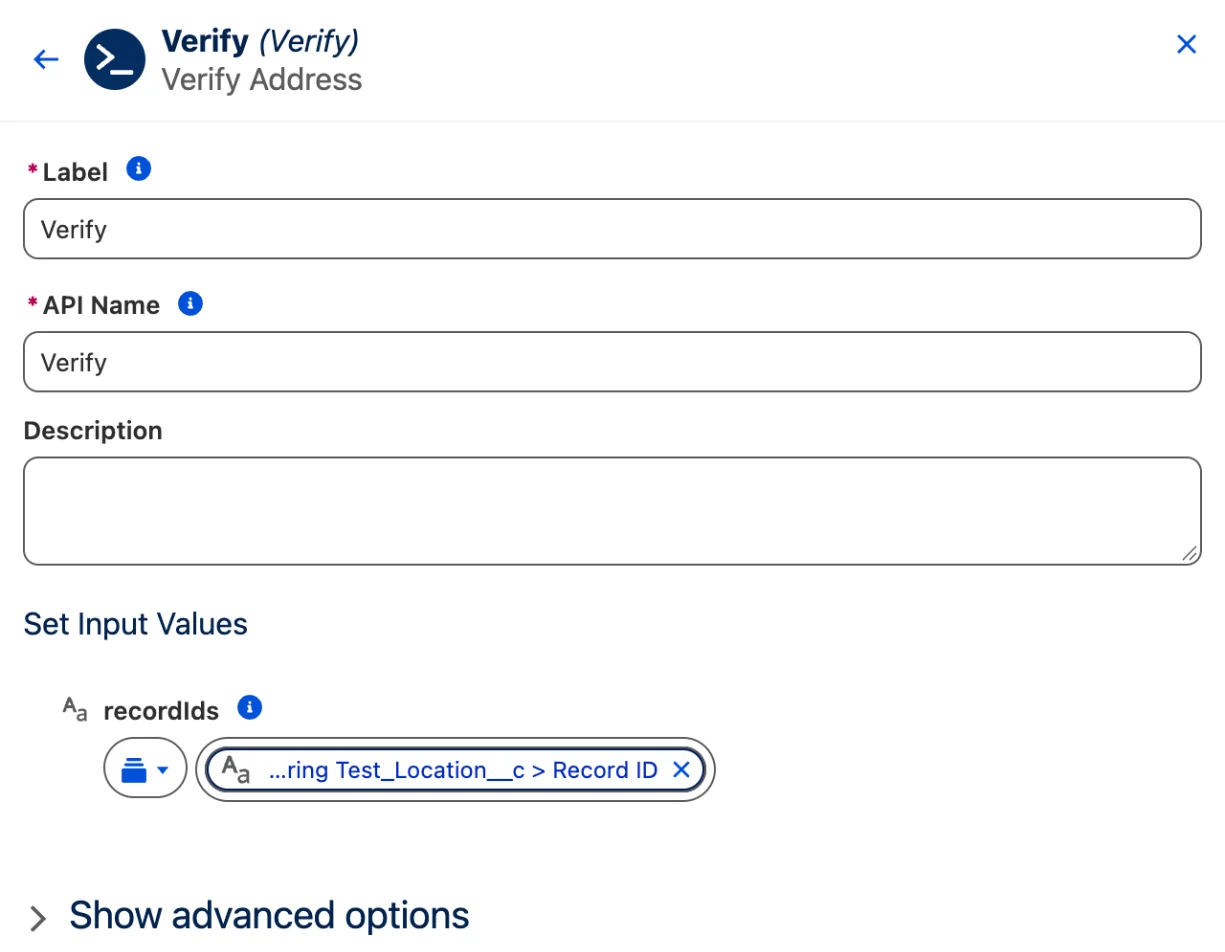
Click Save. Name the Flow. Click Activate.
Type a Flow Label, for example
Location Verify Address. Click Save. Click Activate.Test the Flow with a new record.
Make a record with a US address. Save. Wait a few seconds. Reload the page. The fields show the result. The check uses one lookup.
Applies to
Address Verification 7.3.x. These steps come from the tested Address Verification implementation guide, where they sit with the steps before and after them.
Was this helpful?
Thank you. It helps us know which articles work.
Related
Still stuck?
Open a case and paste the exact error text. A person reads every case.