

Skip to content
Book a Demo Open a Case

Salesforce apps by To A Finish

Four managed packages that run inside your own Salesforce org.

Simple Signature

Document creation and e-signatures in Salesforce

Address Verification

Clean, verify and geocode Salesforce addresses

Highlighter

Colors, renames or hides Salesforce fields

List Browse

Browse Salesforce records without list clicking

Get started

Install, configure and roll out a TAF package.

Implementation guides

Guides for all four apps are ready.

How-to articles

One article per task

Book a demo

See a package in a live org

Compatibility

Editions and releases we support

Get help

Open a case and a person reads it.

Open a support case

The fastest route to an answer

Give us access

Let us sign in and see the problem

Support home

Guides, release notes and the case form

Troubleshooting

Search by the error text you see

Documentation

Written for admins, not for developers.

Implementation guides

Guides for all four apps are ready.

How-to articles

One task per article

Change log

What changed in each release

Compatibility

Editions and seasonal releases

Simple Signature Address Verification Highlighter List Browse Support Book a Demo
Address Verification · How-to

Track address changes

How to do it in Address Verification, one step at a time.

Last updated 11 Oct 2026

Optional. Skip this chapter if you do not need a history of address changes.

Field history shows who changed an address, and when. This chapter uses Account. Contact and Lead work the same way.

  1. Open Account in Object Manager. Click Fields & Relationships.

    Open Setup. Click Object Manager. Click Account. Click Fields & Relationships.

  2. Click Set History Tracking.

    The button sits at the right end of the Fields & Relationships header. In a narrow window, the page can cut it off. Make the window wider, or zoom out, to see it.

    The page Account Field History opens.

  3. Tick Enable Account History, if it is not ticked.

    The list of fields shows when the box is ticked.

  4. Tick Billing Address and Shipping Address. Then click Save.

    You can also tick the Address Verification fields, for example Billing Verified and Billing Return Code.
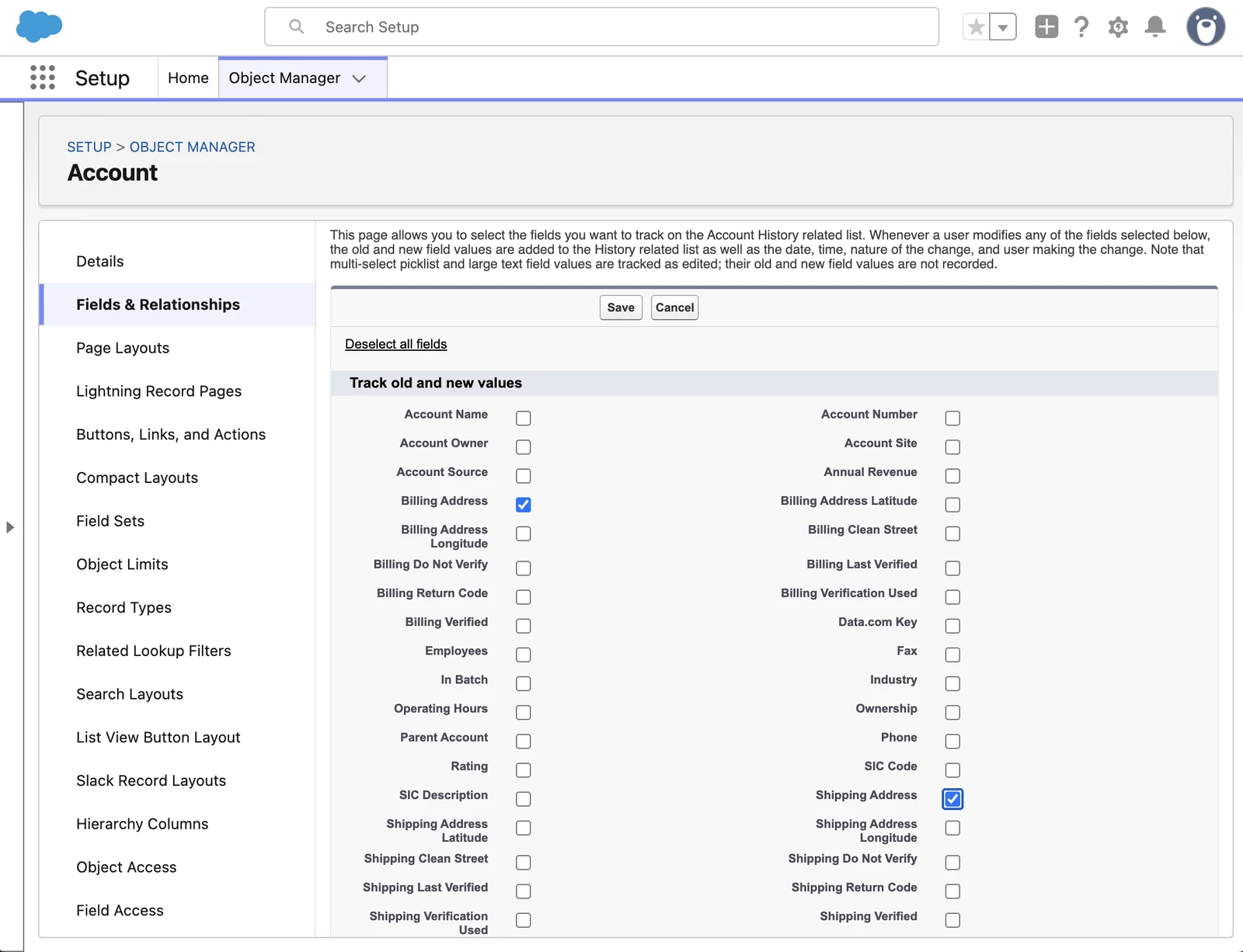
    The Account Field History page. Under Track old and new values, Billing Address and Shipping Address are ticked.
  5. Do the same for Contact and Lead.

    On Contact, tick Mailing Address and Other Address. On Lead, tick Address.

Applies to

Address Verification 7.3.x. These steps come from the tested Address Verification implementation guide, where they sit with the steps before and after them.

Was this helpful?

Related

Support

Still stuck?

Open a case and paste the exact error text. A person reads every case.