

Verify records with a batch job
How to do it in Address Verification, one step at a time.
Last updated 11 Oct 2026
Optional. For a first cleanup of all records, or a new check from time to time.
A batch job checks records on a schedule, up to 50 records in each batch. A large job can take a long time, because Salesforce runs Apex jobs slowly on purpose. Most orgs run one after the install to clean up old records, then use background checks or Flows.
A batch job uses many lookups
It uses a lookup for each address it checks. Test the filter with a small limit first.
Set the Active Job ID Field for the object.
Make a Text field with a length of at least 18 on the object, for example
AV Job ID. On the last page of the field wizard, untick the page layouts. The users who run the job need read and write access to it.On the Automation tab, click Edit beside the object. Type the API name of the field in Active Job ID Field. Click Save. Reload the page.
On the Automation tab, open Batch Jobs. Click New Job.
Fill in the job.
Field Value Job Name Optional. Any name. Verification Type Physical Addresses, Emails or Phone Numbers. Each kind needs its own job. Object Name Your object. If it is not in the list, add it with Add Supported Object. Job Start Time Empty to run the job now. With a time, the job runs every day at that time. Enable Advance Job Schedule For another schedule than every day. Email when Job Complete Optional. It emails the current user when the job verified records. Do not use it on large jobs, because it slows them down. Email(s) The addresses that get the email, with commas between them. Job Size The number of records in each batch. Keep 10, the value that shows. Expire Validations > X days 0, or a number of days. A record verified longer ago than that is checked again. With 0, the job never checks a verified record again. If a red message says that the Active Job ID text field is required, close the window and do step 1.
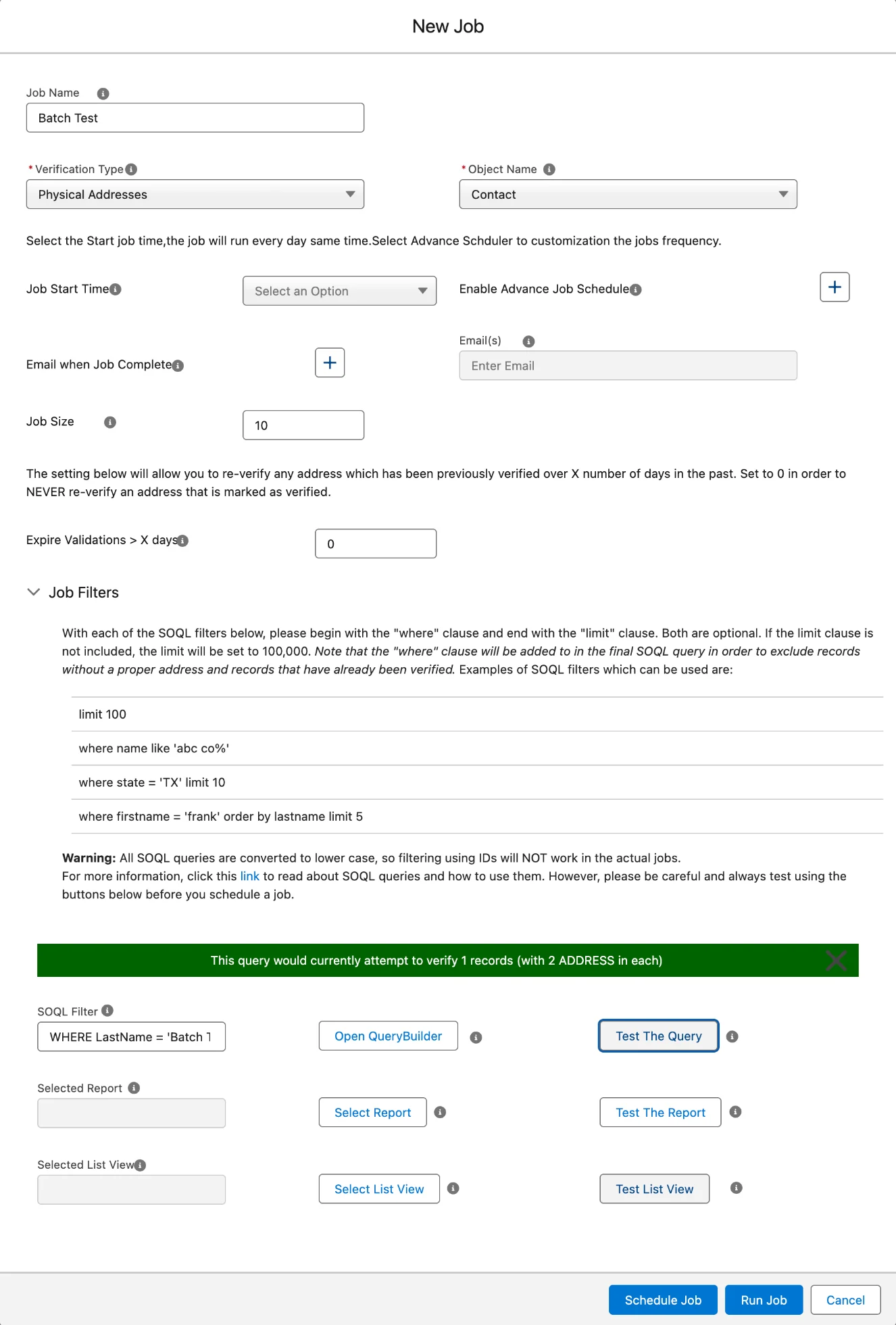
Under Job Filters, pick the records.
Use one of three ways: a report from the Address Verification report folder, a list view of the object, or a SOQL Filter. Open QueryBuilder helps to write the filter. Click Validate, then Use Query.
SOQL is the query language of Salesforce. A SOQL filter starts with WHERE, for example:
WHERE State = 'TX' LIMIT 5- For a first test, add
LIMIT 5at the end of the filter. A filter can also beLIMIT 5alone. - Without LIMIT, the job takes up to 100,000 records.
- Do not filter on a record ID, not even an 18-character one. The job changes the filter to lower case, so an ID does not match.
- A filter can end with ORDER BY and LIMIT, for example
WHERE State = 'TX' ORDER BY LastName LIMIT 5. With LIMIT, ORDER BY sets which records the job takes. - If Test The Query shows Query Failed, see Test The Query shows Query Failed.
- The first time you use a list view, you must add a remote site setting. See Address Verification cannot reach Smarty.
- For a first test, add
Click Test The Query.
A green bar shows how many records the job can touch, for example This query would currently attempt to verify 1 records (with 2 ADDRESS in each). The count also holds records that are empty or verified already.
If it reads No object is selected for query, please select object first !!!, pick the object in Object Name again.
For a report or a list view, click Test The Report or Test List View.
Click Run Job, or Schedule Job.
Run Job runs the job once, now. Schedule Job runs it on the schedule you set.
Watch the job.
Click Go to Apex Jobs for a job that runs now, or Go to Scheduled Jobs for a later one. If the button does nothing, open Setup and type Apex Jobs in the Quick Find box. To see or delete a job, use View or Delete in the Batch Jobs list. Do not abort a job in Apex Jobs.
In the Batch Jobs list, the Status of the job reads Completed at the end. A job that found no record to check ends with an empty Status.
Schedule the weekly cleanup of Deputy records.
Batch jobs leave records in a hidden object named Deputy. A scheduled job deletes them. Open Setup. In the Quick Find box, type Apex Classes. Click Apex Classes. Click Schedule Apex.
Field Value Job Name Address Verification Batch CleanupApex Class DeputyRecordDeletionBatchFrequency Weekly. Tick one day. For a daily cleanup, tick every day. Start, End Salesforce fills in an End date one month ahead. Set it years ahead, or the cleanup stops. Preferred Start Time Out of work hours, after your batch jobs Click Save.
Applies to
Address Verification 7.3.x. These steps come from the tested Address Verification implementation guide, where they sit with the steps before and after them.
Was this helpful?
Thank you. It helps us know which articles work.
Related
Still stuck?
Open a case and paste the exact error text. A person reads every case.